
On the “Tasks” page, it is possible to use filters to facilitate the search. To view them, click on the “Filter” icon located at the top of the screen on the right. Then it will appear some classifications for filtering and you just need to click to select the option you want and then click on "Apply":
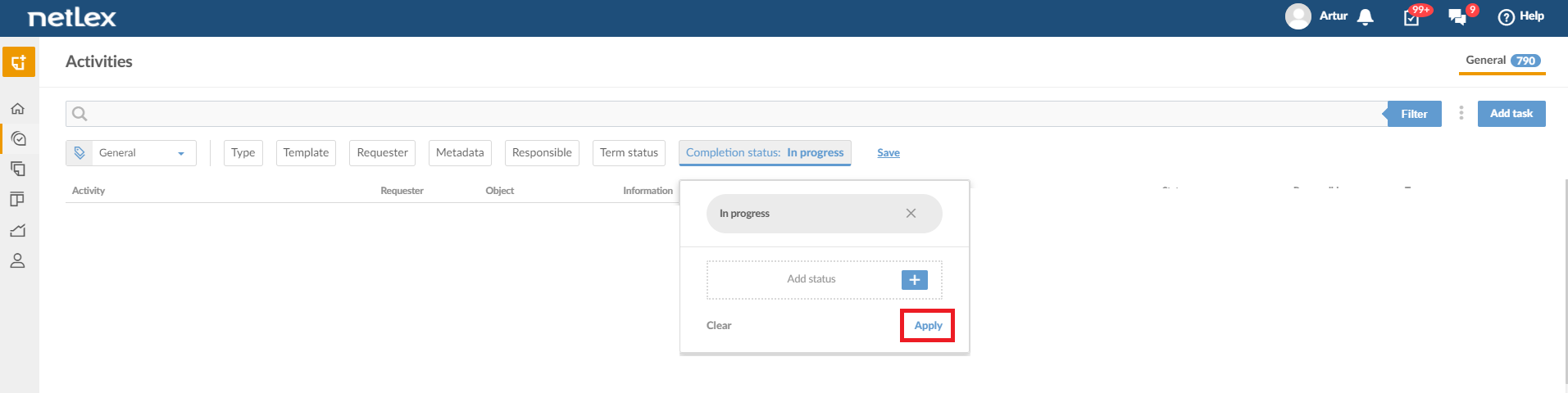
See each of the ratings:
1. Type: indicates whether the task refers to a request, approval, signature, deadline extension, clarification, task, email, meeting or call. See a description of these types in the Activity Types topic.
2. Template: indicates the template used to generate your document. If you have created a new "Request to Legal" document for example, the template will be the name of that document, in this case "Request to Legal".
3. Requester: who originated the workflow from the elaboration of a document.
4. Metadata: data related to the document's workflow, which varies according to the workflow configuration. It is worth to know that the value inserted in the metadata search must be exactly the same as the value registered in the document you want to find in the search.
5. Responsible: who is responsible for the respective workflow step.
6. Term status:
- No deadline - tasks that do not have deadlines or SLA.
- Not expired - tasks that are still on schedule.
- Expired - tasks that were not performed before the deadline.
7. Completion Status:
- In progress - tasks that are still pending and need to be carried out.
- Completed - tasks that have already been carried out and that there are no more pending issues.
It is not necessary to select an option in all filters, and it is important to know that they are cumulative. In this way, it is possible, for example, to select completion status “in progress” and apply this filter, and then later select the type “request” and apply this second filter. This will show all tasks in progress and then all tasks of the request type that are in progress.
Furthermore, it is possible to save a selection of filters to consult it more quickly. See how to do this in the topic "Save activity filter".
Comments
0 comments
Please sign in to leave a comment.