
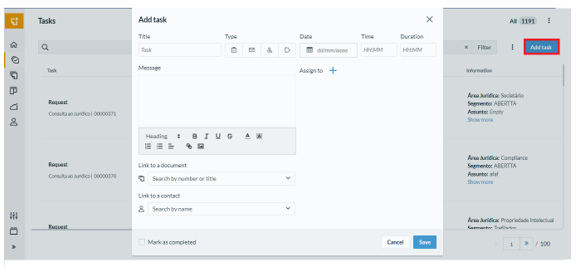
On the “Tasks” page, there is the option to add task in the upper right corner of the screen. It works like an agenda and helps with routine follow-up. See the step by step:
- Fill in the topics: title, type (task, email, call or meeting), date, time and duration.
- Note on the task: it is possible to record a description in the “Message” field.
- By clicking the + icon next to “Assign to”, you can select who the task will be assigned to: yourself, another user or an entire team.
- Attach a document or a contact, if you want to specify. This can be important for the reports that the company needs to generate.
- When you reach the end of the process, just click on “Save”.
The added task is available on the “Tasks” page.
If you are launching a task that has already been completed for control purposes, for example, just fill in all the data and click on “Mark as completed”.
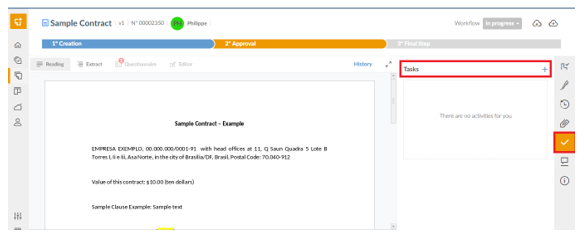
In addition, the task can be created and managed within the document management screen. To do this, simply click on the "Tasks" icon in the sidebar on the right of the screen. See in the image below:
The task can also be used as a time report to mark the launch date of a product or professional task, for example.
Comments
0 comments
Please sign in to leave a comment.