
How do you know what has changed in each version of the document?
It is possible to perform a document version comparison to know what data has changed from one version to another. For example, you can compare version 1 quiz responses with version 2 of a document.
This option is available on the "Document Versions" tab located on the right side menu of the as shown in the image below:
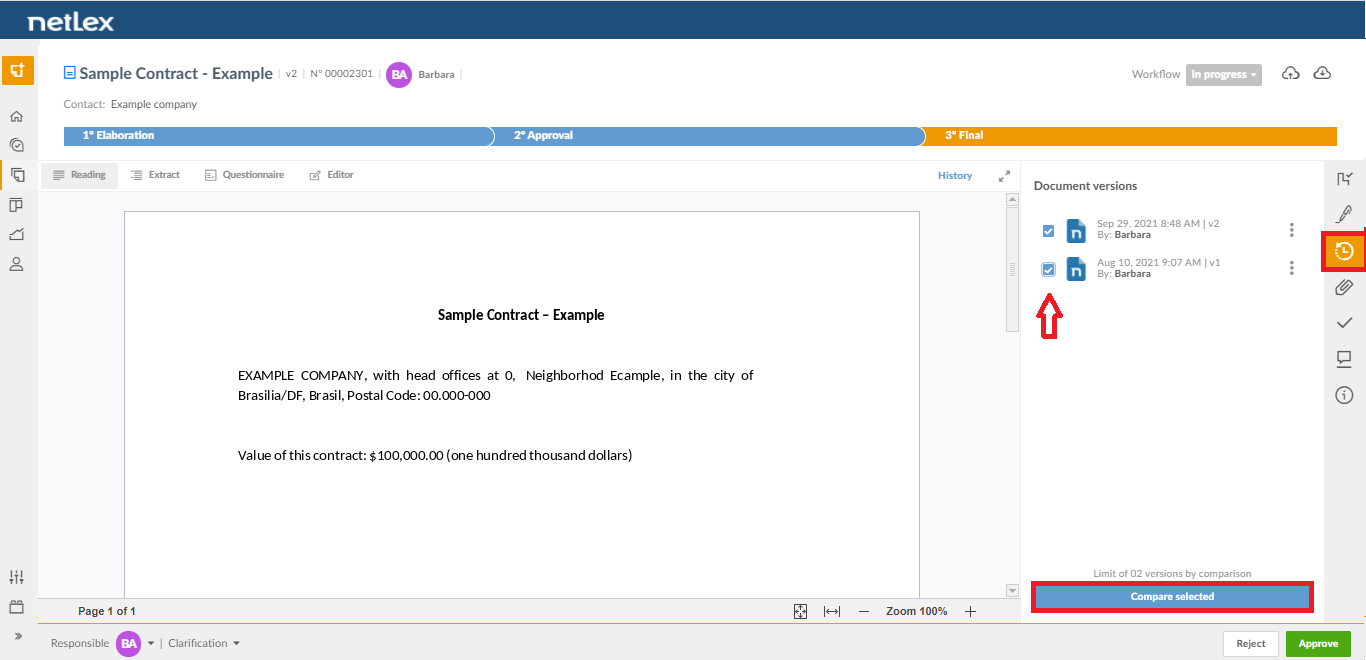
Note: For the "comparison" button to be available, it is necessary to select the 2 versions that will be compared. Furthermore, it is only possible to compare versions entered by the questionnaire. If it is an external version or an "Editor" version, it will not be possible to perform the comparison.
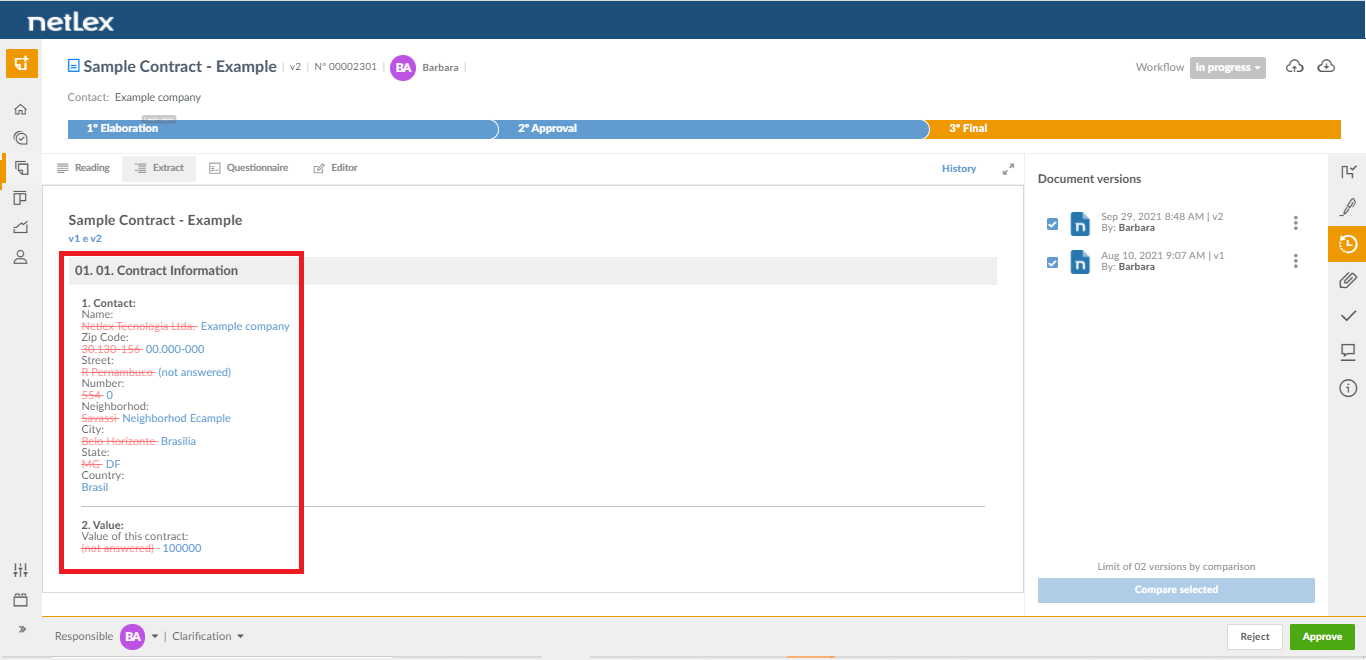
To view what has been inserted or removed from one version to another, by clicking on "Compare Selected" the system will redirect you to the "Extract" view mode. It will be possible to view in "Red" what was removed and in "Green" what was inserted.
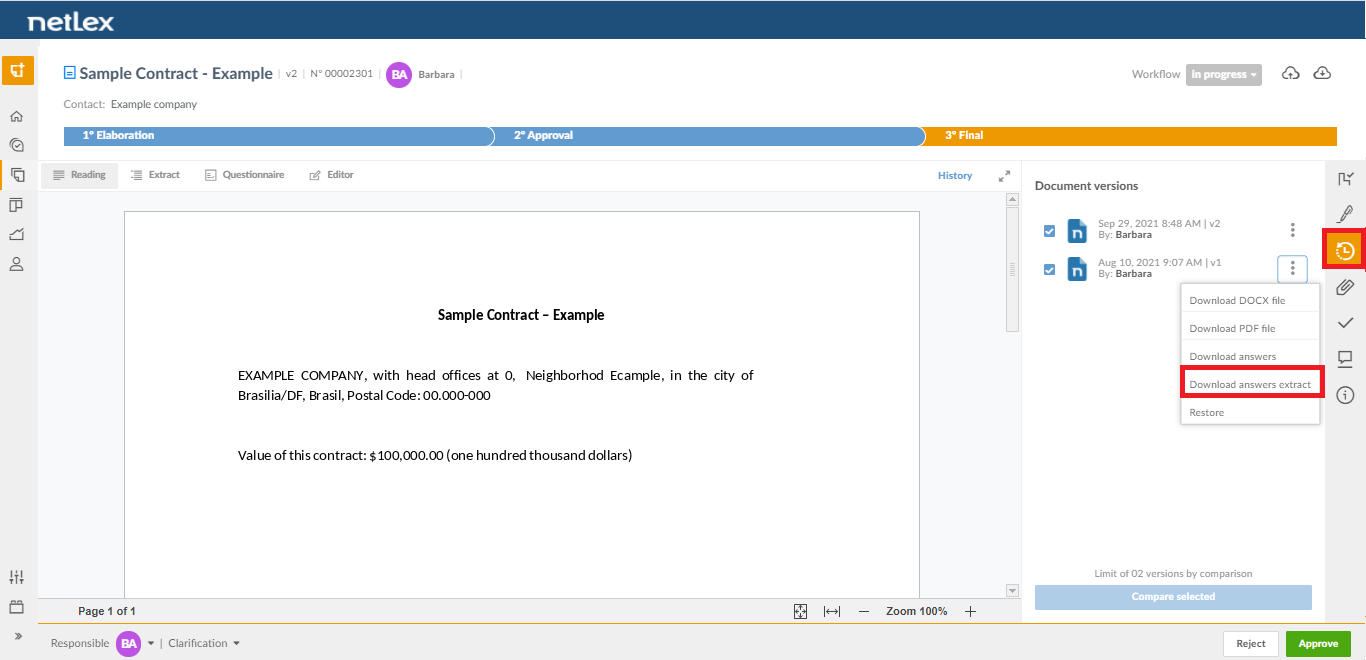
In addition, it is also possible to download an extract of responses from each version of the document, which contains the list of all responses entered by each user. This option is also available on the "Document Versions" tab located on the right side menu of the image below:
Comments
0 comments
Please sign in to leave a comment.