
How to Enable the Use of the Editor in the Document
Editor Mode allows you to view the document in a Word-like mode, whereby you can freely edit the document.
To release this functionality it is necessary to enable the settings in three places:
- Template configuration.
- Workflow configuration.
- User access profile configuration.
Template configuration
Access the "settings" tab, "template" option, locate the document in which you want to enable the functionality and click on "Edit" signaled by the three dots symbol (...) to access it.
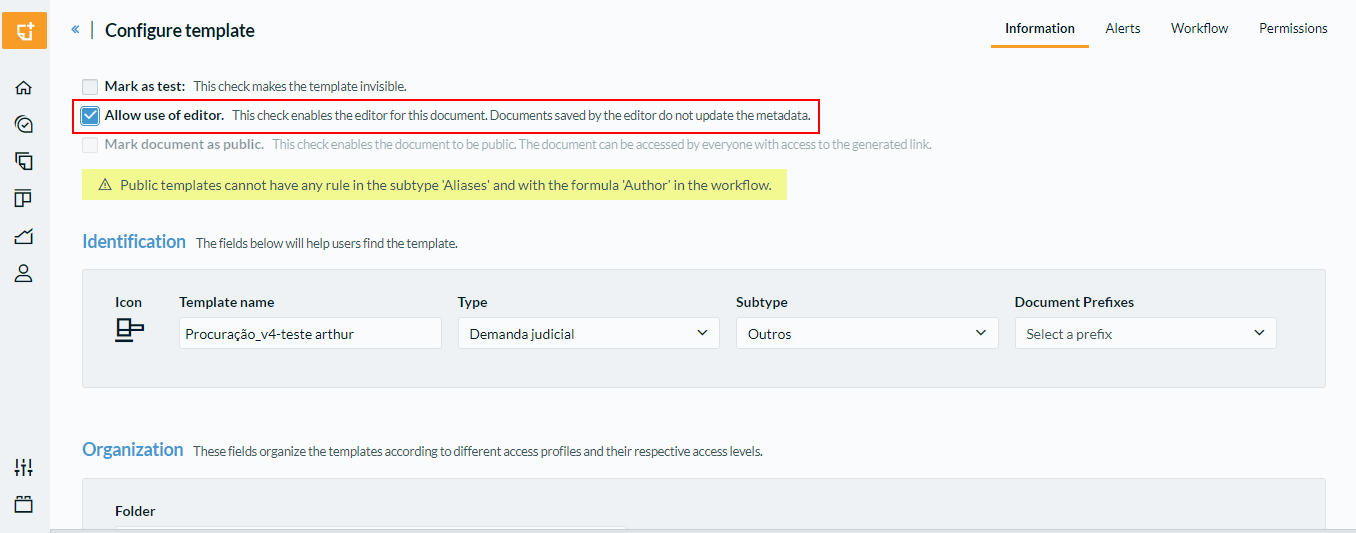
Within the template configuration screen, check the option “Allow editor to be used”. This check enables the editor for this document as shown in the image below:
Workflow configuration
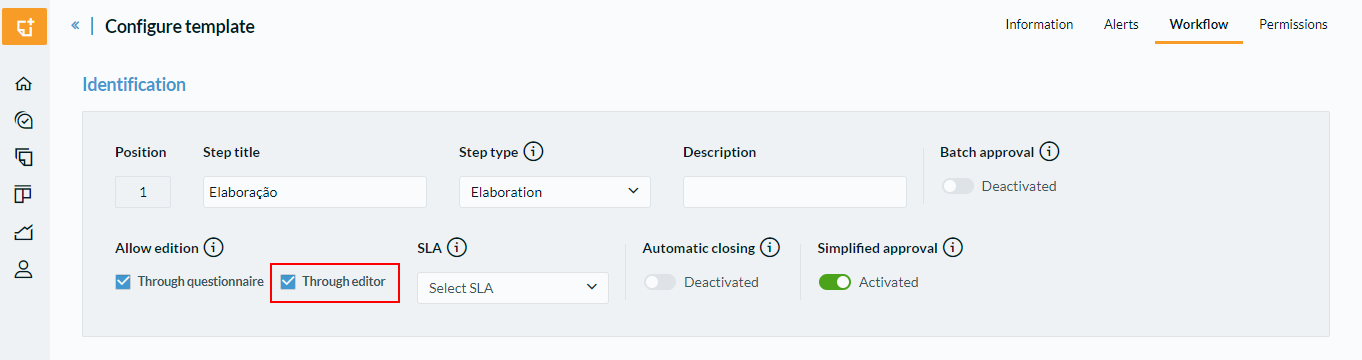
If the model has a workflow, it will be necessary to individually enable the editing option “Through editor” in each step. This option is used to restrict or allow document editing for each workflow step specifically. Therefore, only the workflow steps in which editing should be enabled should be marked.
Note: When editing is enabled by the editor in the model, this option is checked by default in all steps, and it is possible to uncheck it for the desired steps.
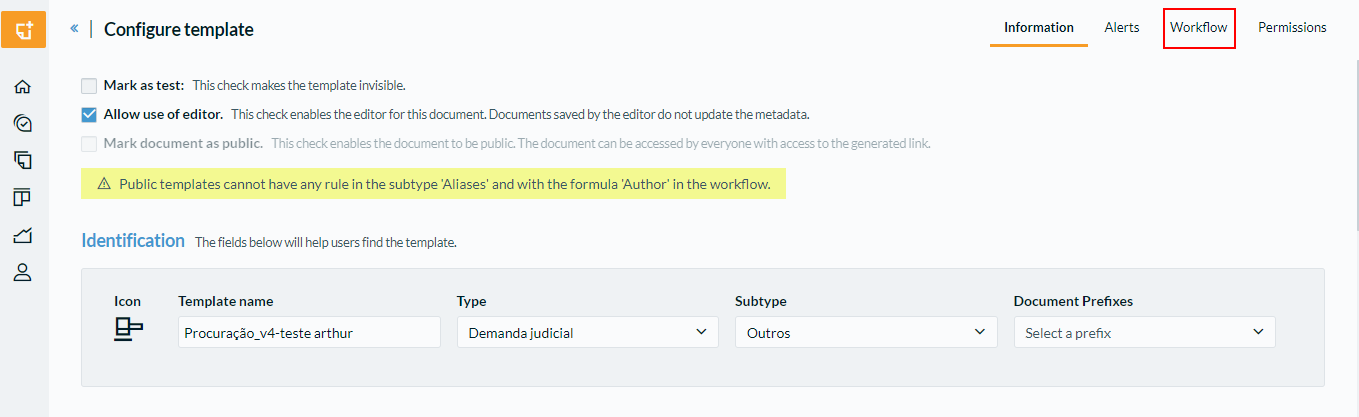
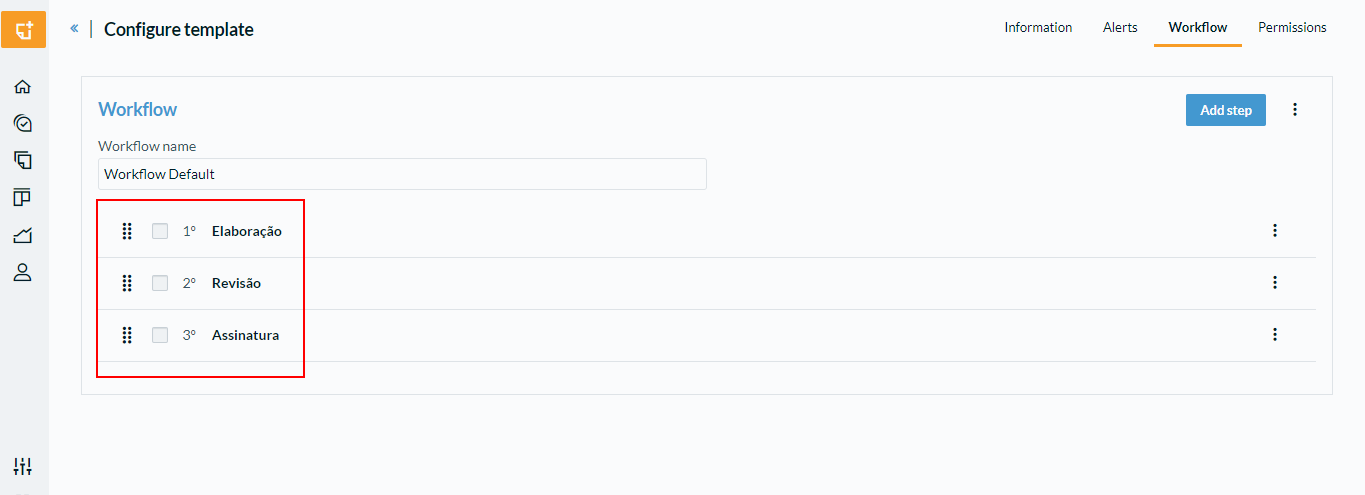
To locate it, click on the "Workflow" tab within the model and access each of the steps:
Enable the Flag “Through editor” and click "Save":
User access profile configuration
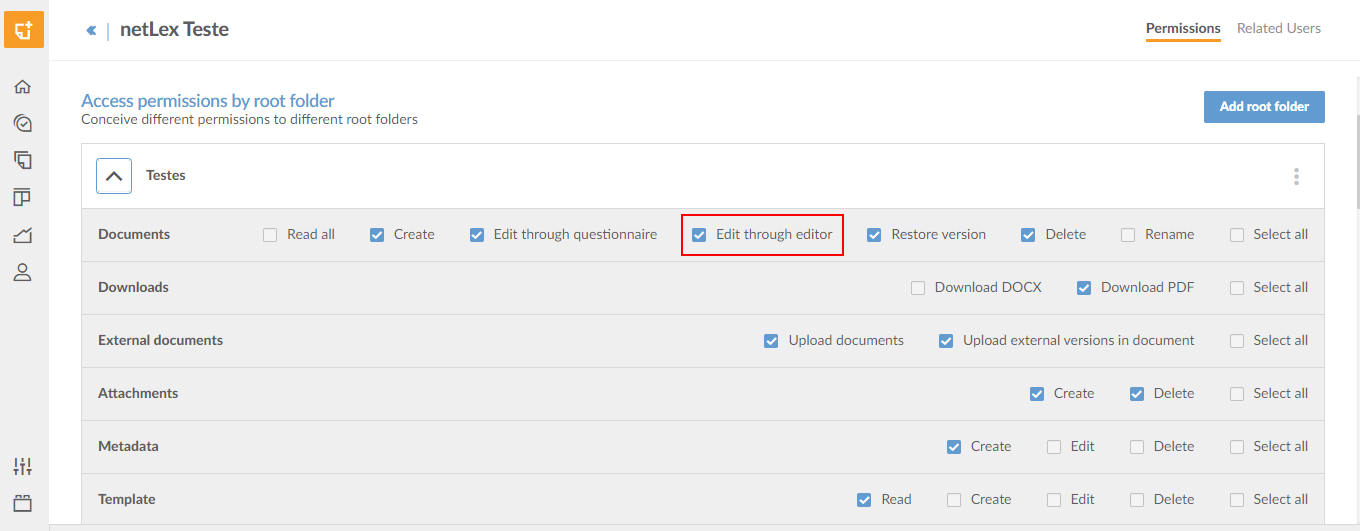
Finally, it's necessary to change the “edit by editor” permission within the profile settings of each user. In this way, the editor will be enabled only for the desired users, that is, for users who have the setting checked in their profile.
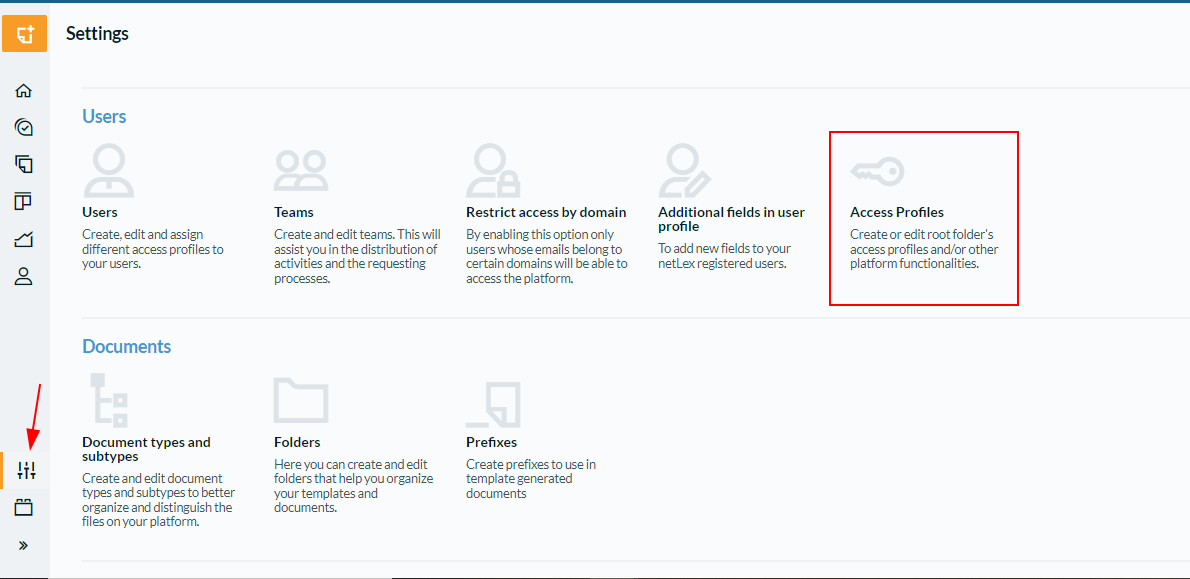
To access the profile settings, open the "settings" tab and access the "Access profiles" option.
The field to be marked is located in the "access permissions by root folder" as below:
Comments
0 comments
Please sign in to leave a comment.