
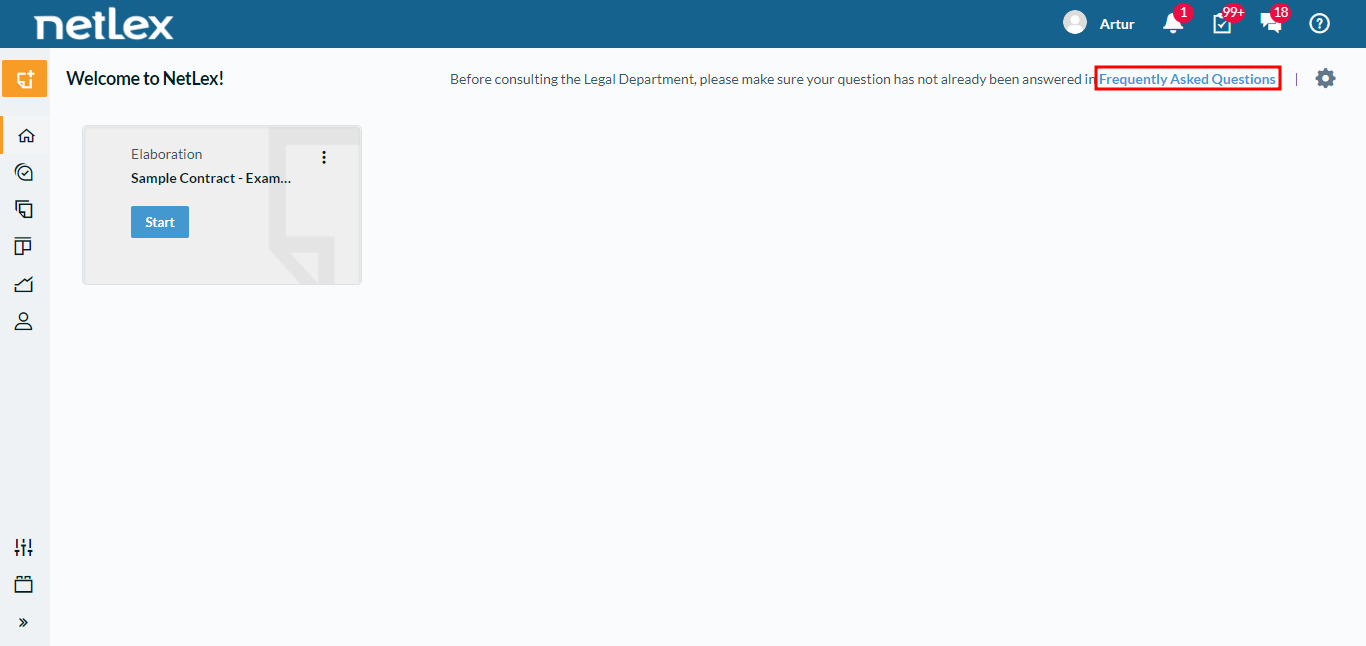
Those who have an administrator profile on the platform can configure the FAQ questions and answers within categories. These categories exist to organize questions by subject or sector, for example. After created, the FAQ is available to users on the platform's Home Page, on the link "Frequently Asked Questions" on the upper right part of the screen.
Here is a step-by-step guide to setting up the FAQ:
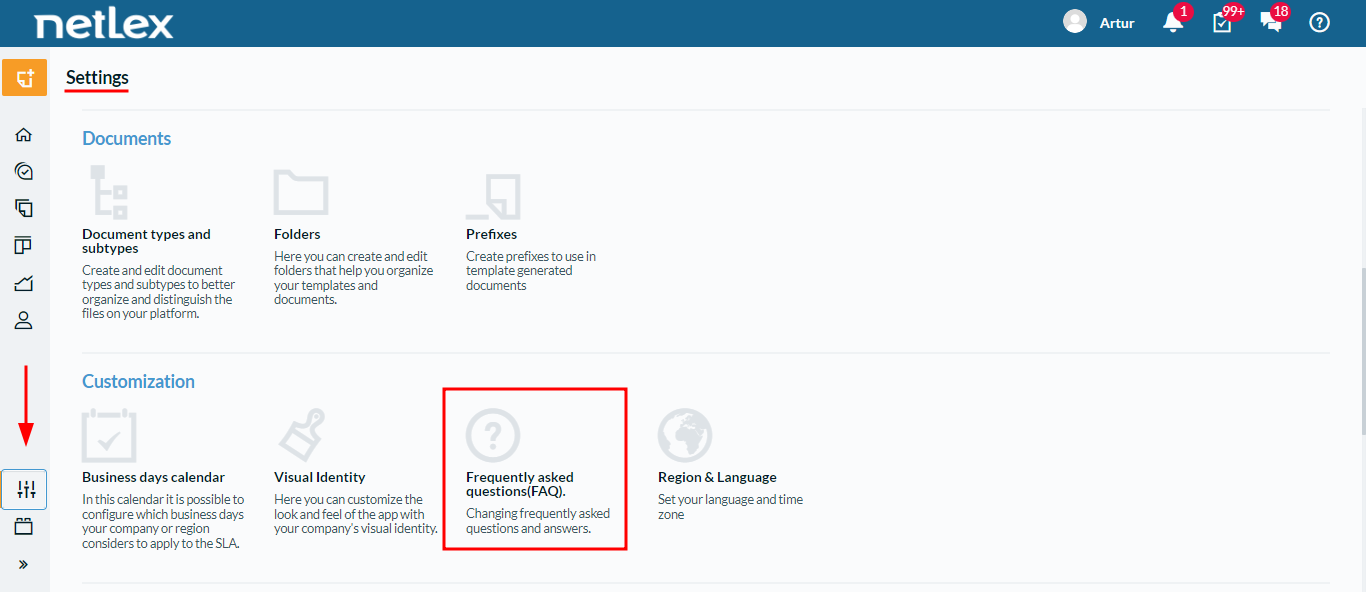
1. In the "Settings" menu, look for the "Frequently Asked Questions(FAQ)" option.
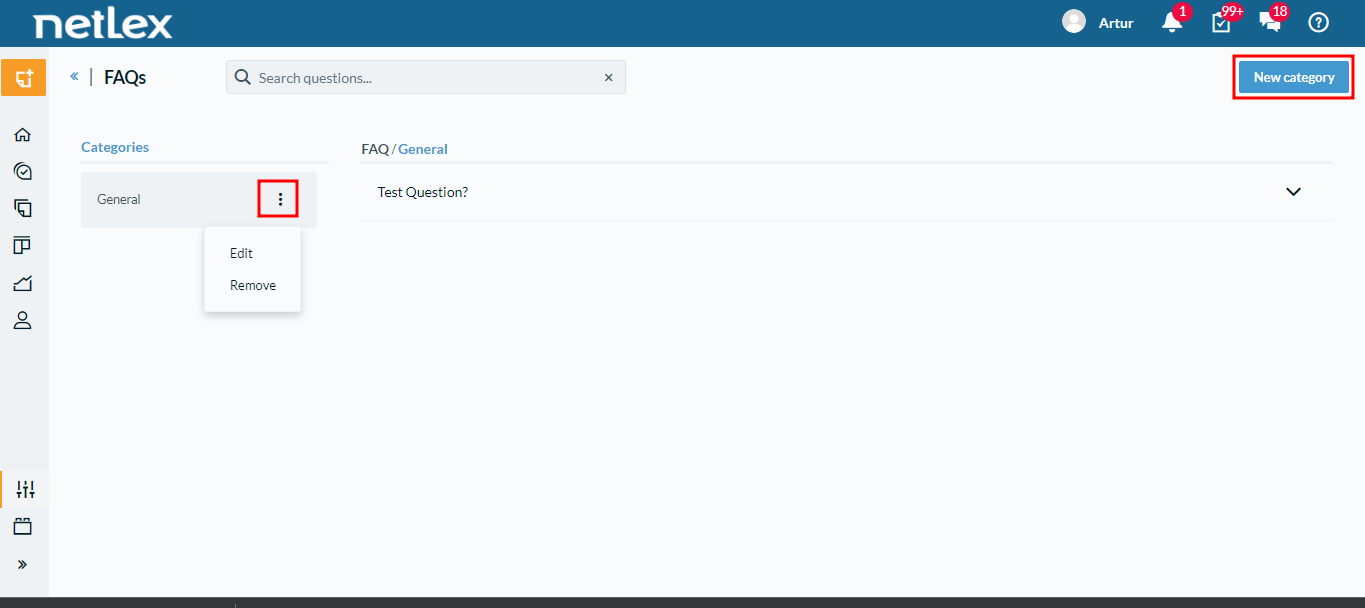
2. When you click on "FAQ", you will have the menu organized by categories and you can create a new one by clicking on the icon on the top right highlighted in the image below. After creating a category, you will be able to select the "Edit" option to enter the questions and answers.
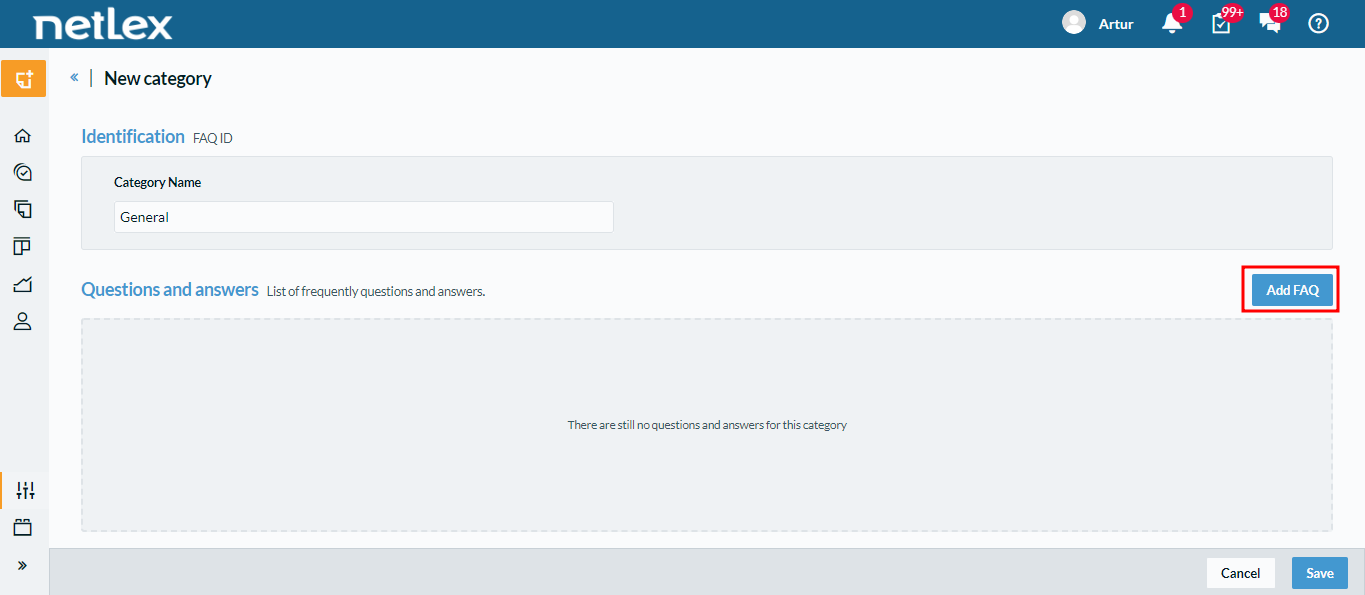
3. Within the category, you will have no question and answer sets at first. For each set you wish to add, click "Add FAQ":
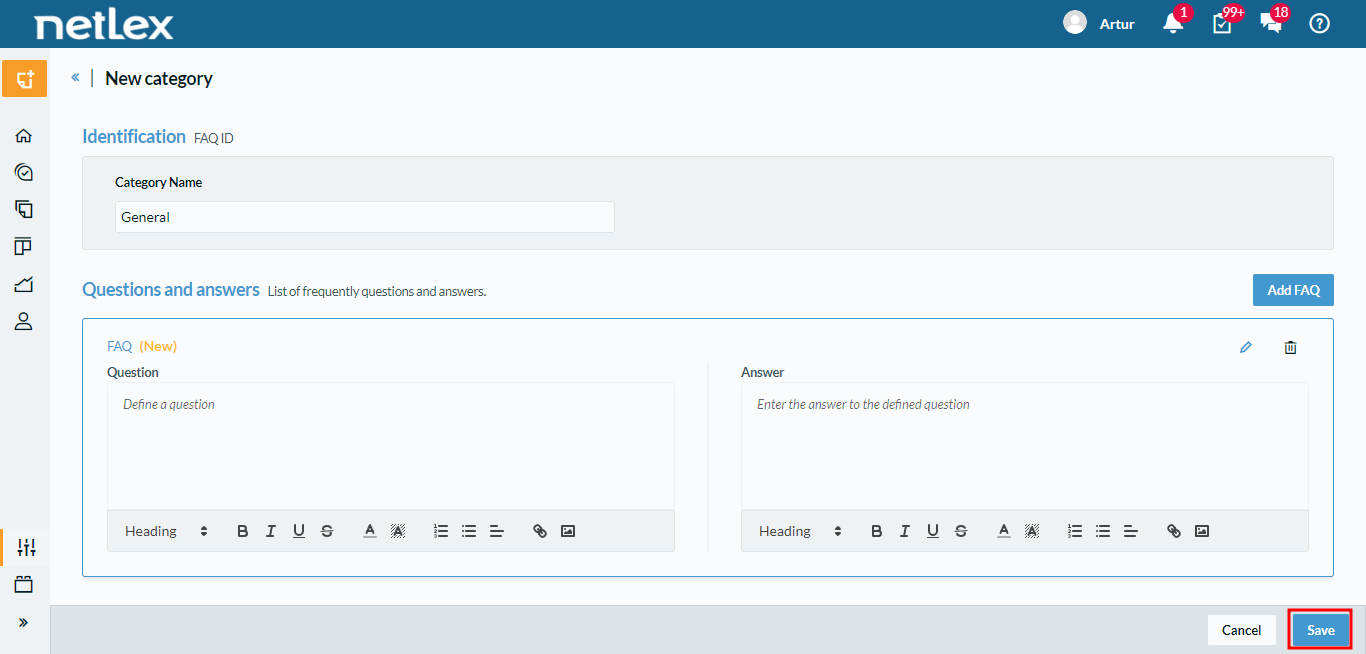
4. You will then have access to a text field to enter a question and answer in any format you wish. If necessary, you can delete a question and answer set. After entering all the FAQs you have prepared, simply click "Save" at the bottom of the page.
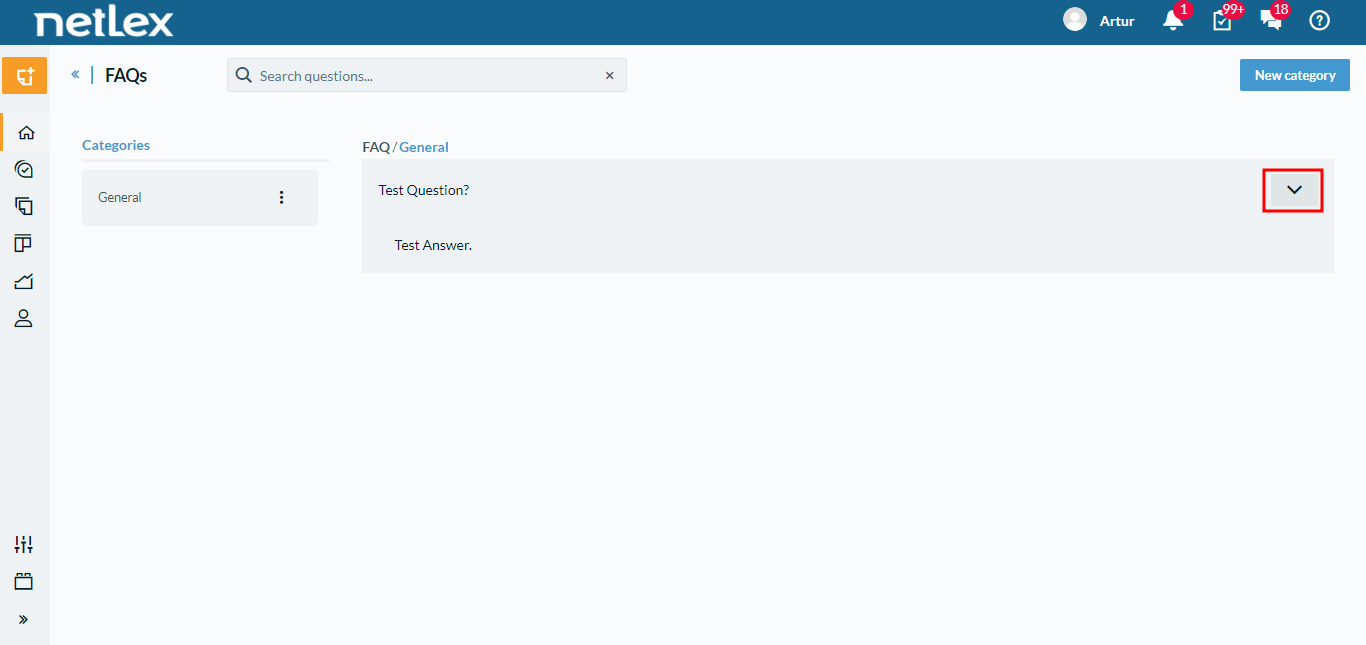
5. When you return to the main menu, you will see how users can view the FAQ. By clicking on each category, all the questions you have entered appear on the right. By clicking on the arrow of a question, its answer will appear right below it.
Comments
0 comments
Please sign in to leave a comment.