
How to organize, add and edit models on the platform?
To insert a new Model in the platform, it is necessary to have specific permissions in the access profile. There are three important fields on the Settings page that are used to define the organization of Templates and to edit them. See the step by step below.
1) Organize your documents
- Types and Subtypes: Organize your documents according to their nature.
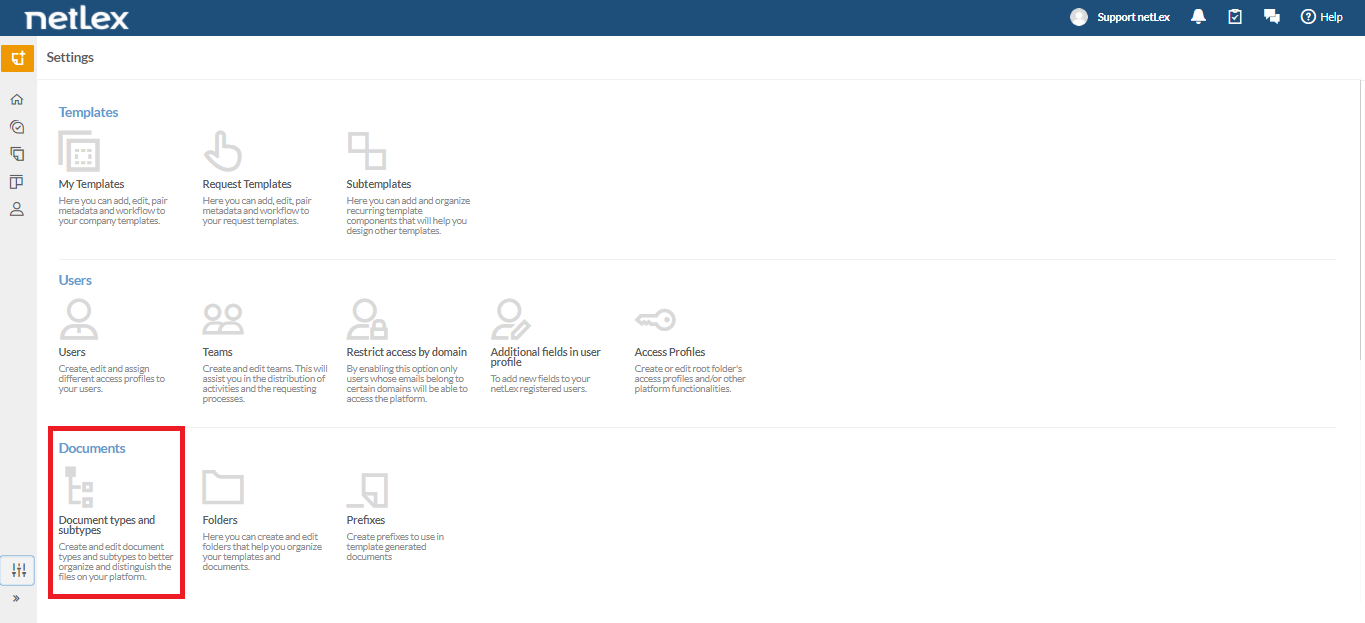
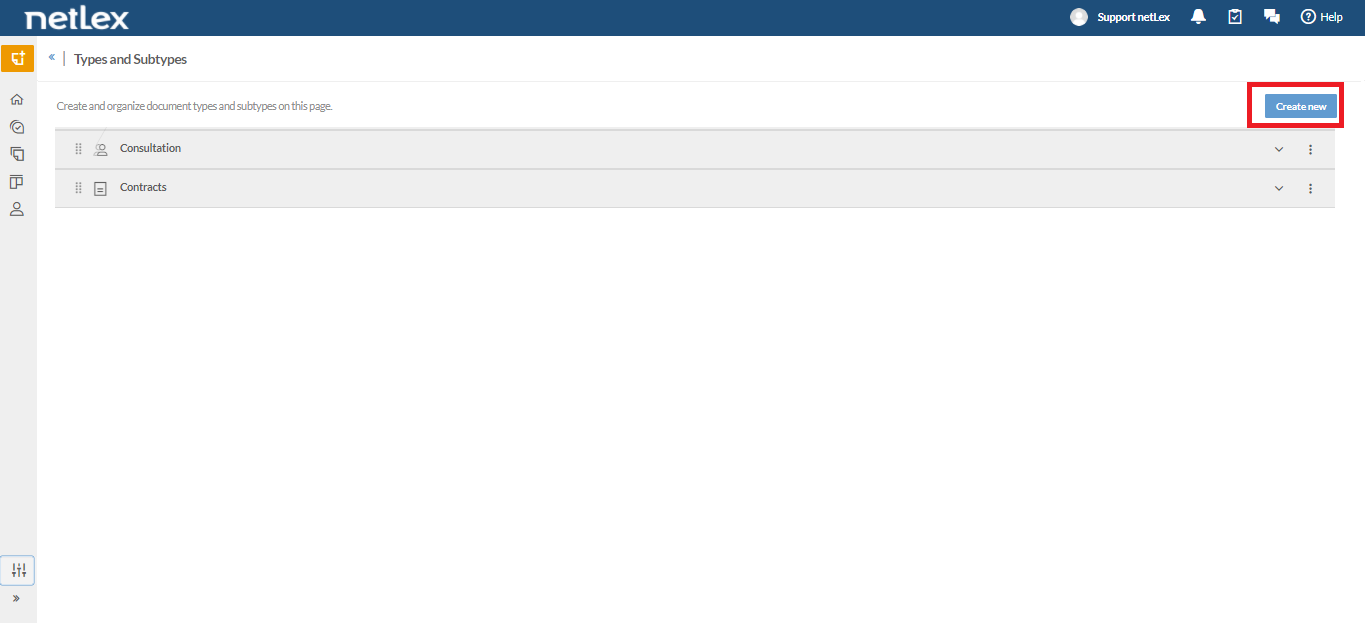
Think of groups of documents that are widely used in your company or office, such as contracts and corporate acts. Some types already exist on the platform by default, but it is possible to define new ones. Just click on “Create new”.
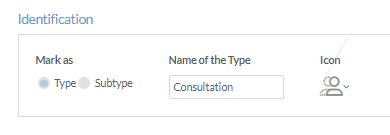
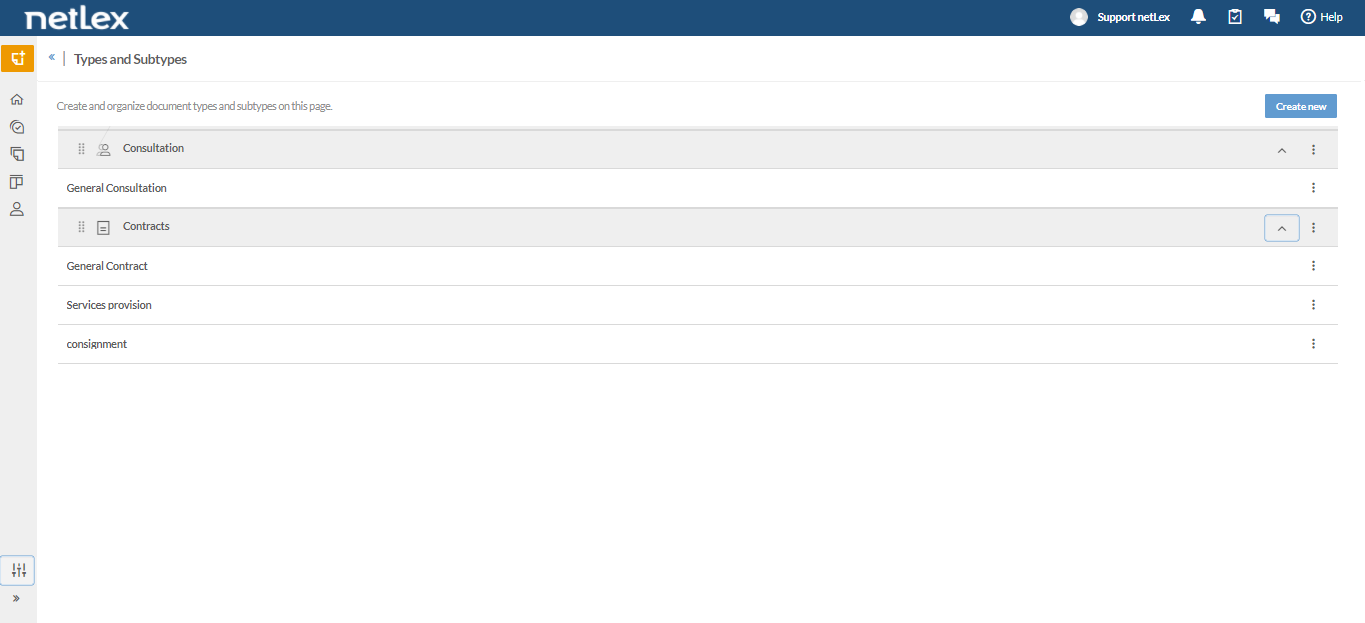
The type identifies the document species and the subtype specifies the genus. For example: If the type is Contracts, the subtypes can be service provision, donation, purchase and sale.
Examples of Subtypes:
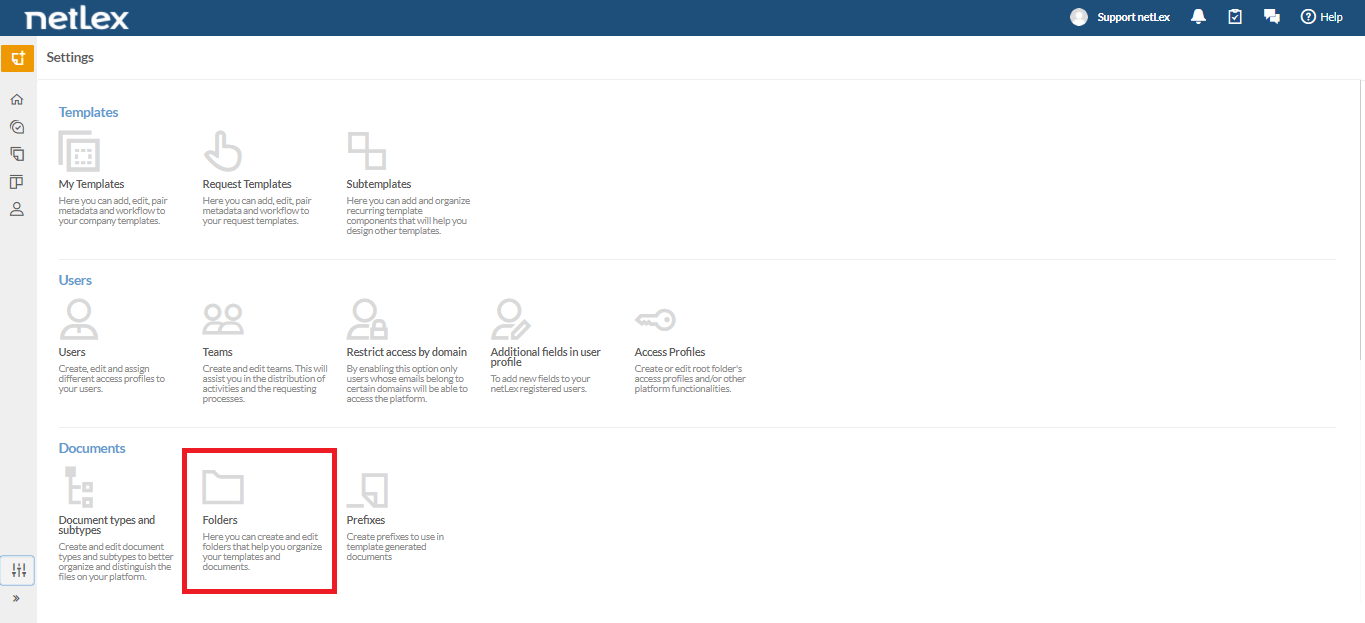
- Folders: organize all the company's document templates through folders so that the correct documents are available for each area.
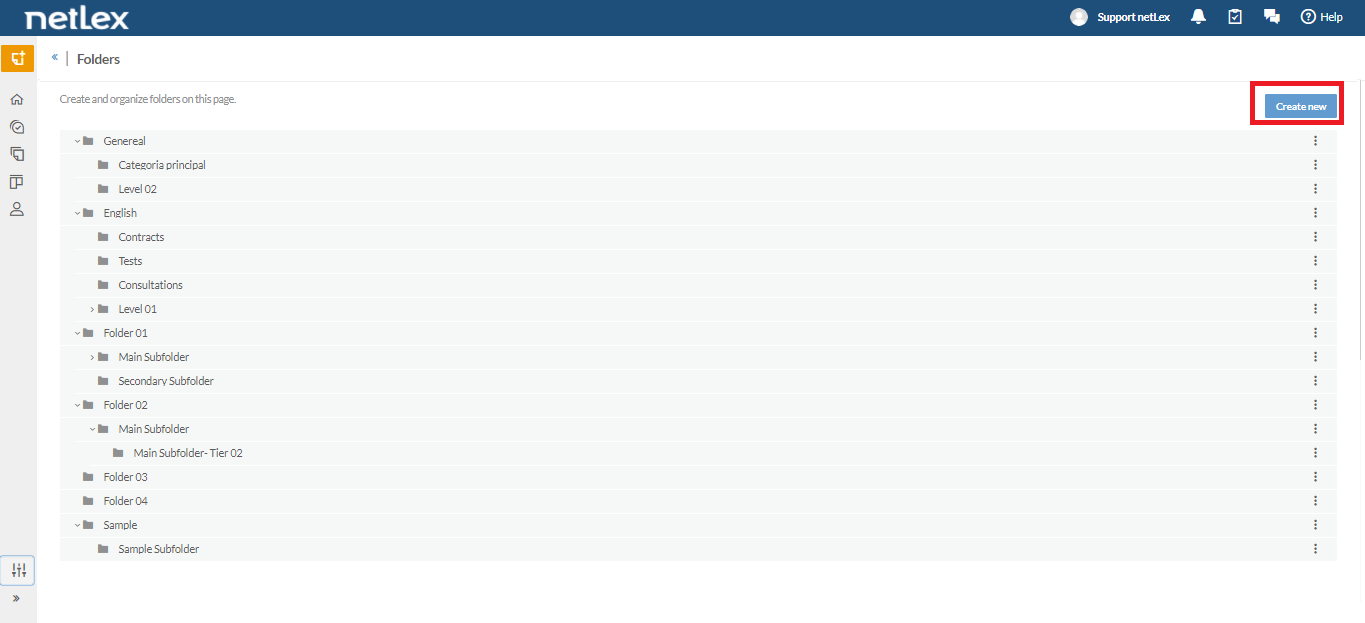
Click “Create New” to create new folders. It is also possible to create subfolders for better organization of the models.
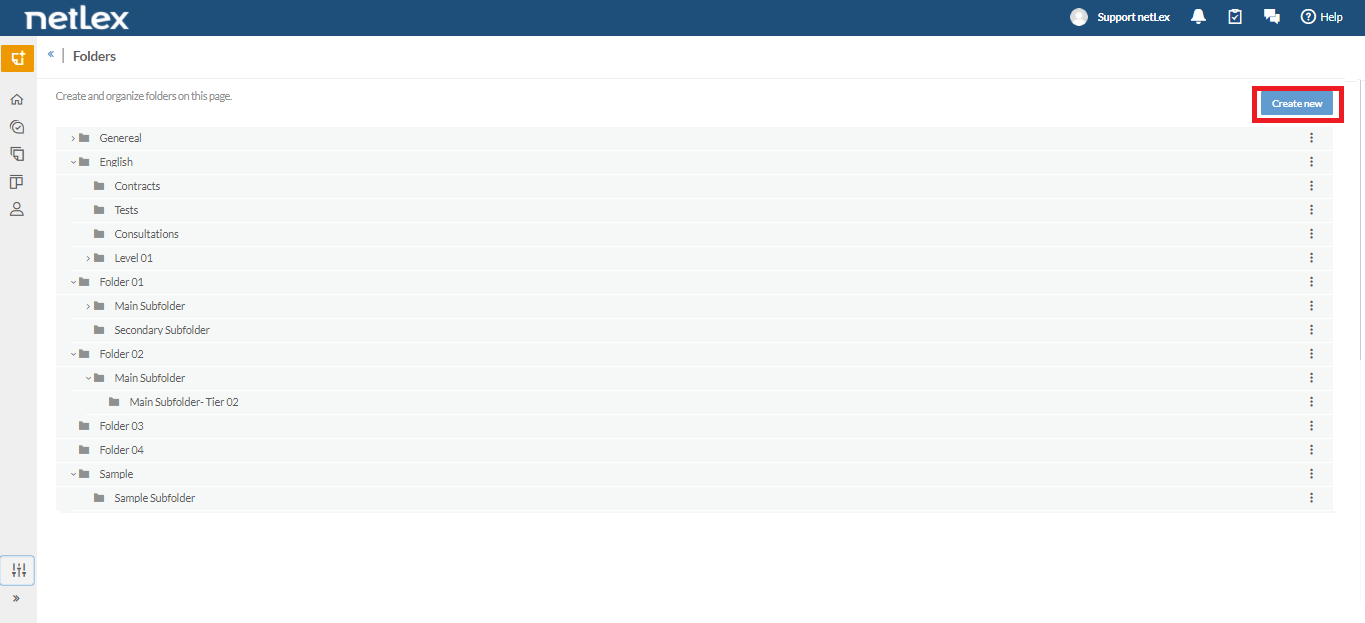
Set a name for your folder. Example: Legal Folder
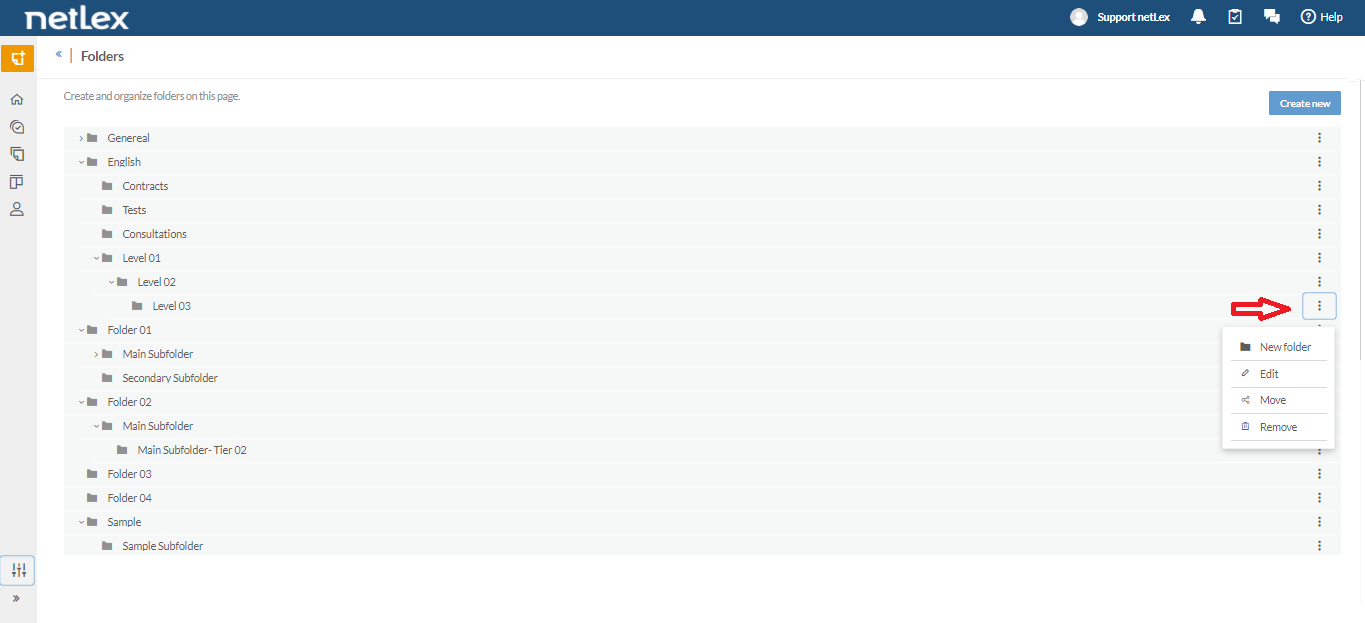
To create a subfolder you must first select the Main Folder and click on the "Three Points" button.
2) Insert and edit your Templates
- My Templates: Add your templates and modify your settings.
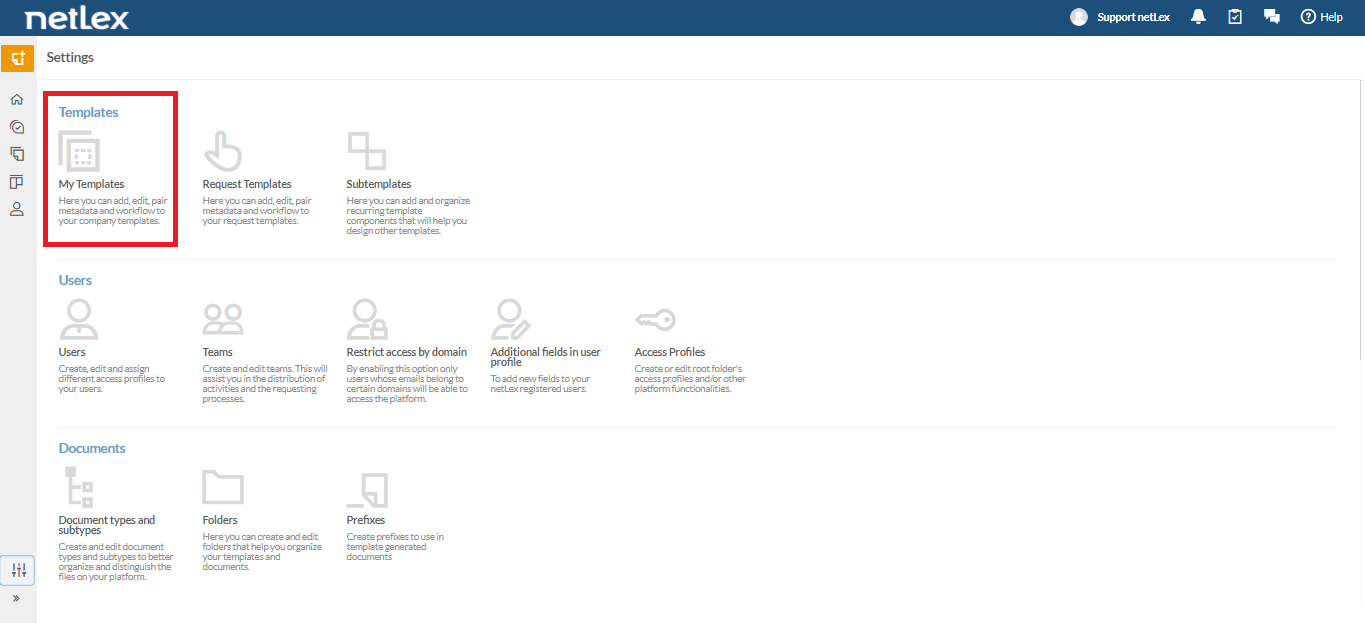
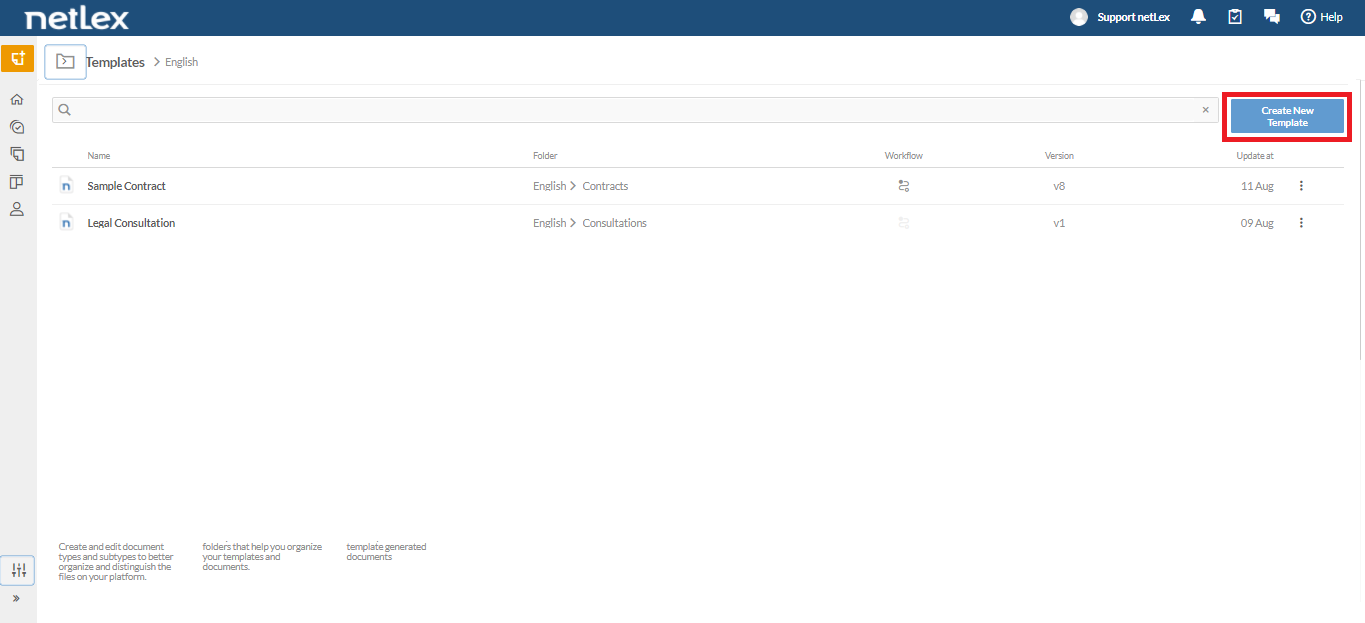
Click on “Create New Template” to insert the documents that are automated in the platform.
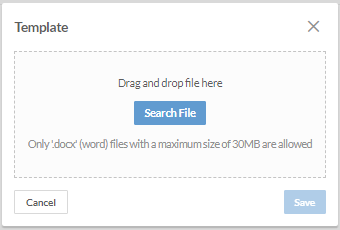
Insert your file and configure your information. Add a title and identify which folder and subfolder it belongs to so that it is visible only to the correct areas.
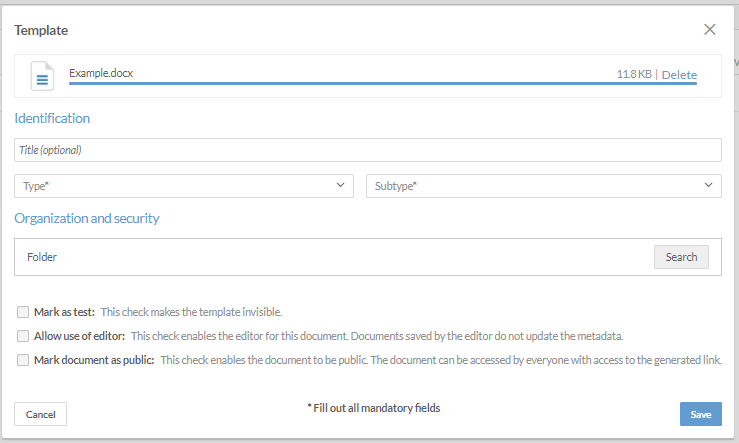
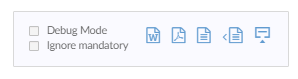
If you only want to test the Model in progress, select the option “Mark as test” so that the tests are not saved as a document prepared in the reports. Click on "Test" to start testing.

This way you'll be able to do faster tests in the questionnaire with the following features:
- “Ignore mandatory” to disable the impediment to continue testing when a mandatory answer is not completed
- Quickly download tests in Word and PDF format from the questionnaire tab
- Download Completed Answers
- leverage a previous set of answers by uploading
- Upload new versions of the Model
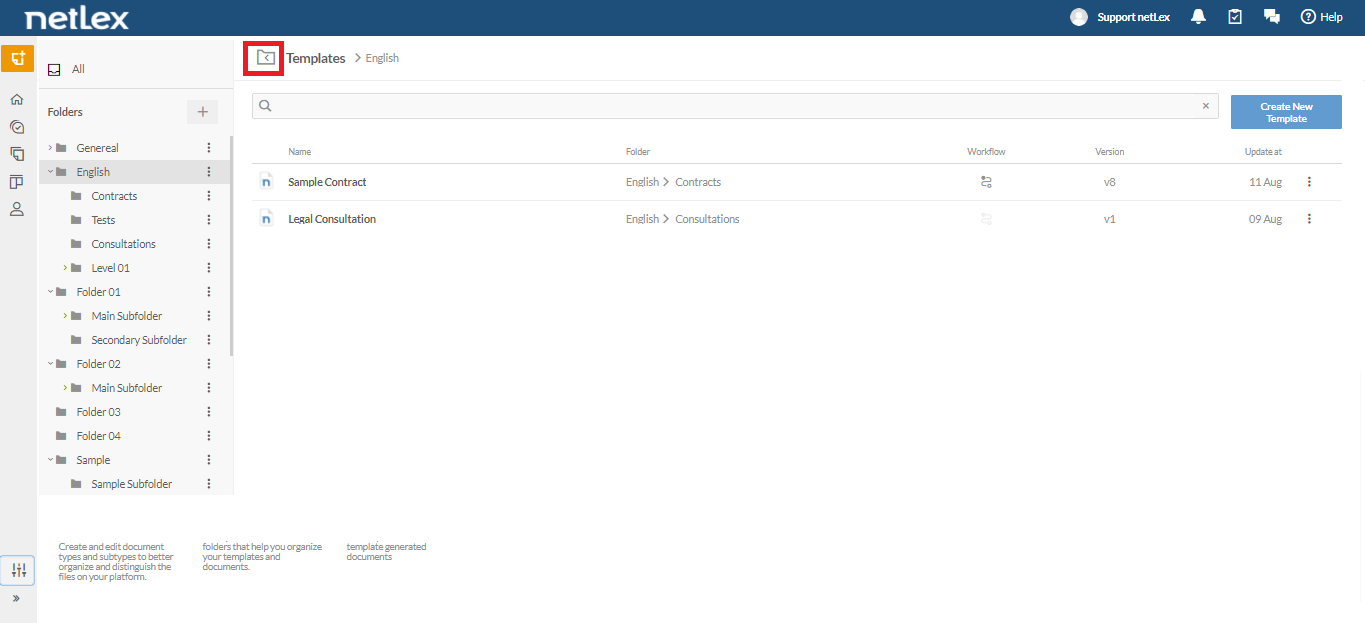
Once Templates are added the “My Templates” page will be organized by the created folders and subfolders. Locating documents will be easier using folders.
Comments
0 comments
Please sign in to leave a comment.