
Create and update information from a subtemplate
A subtemplate is an automated document template that is linked to other templates so that it serves to unify common parts of documents.
So that you can understand better, here is an example:
Imagine two contracts A and B that have a clause in common. This clause is a large text that is exactly the same in A and B. If you want to make a change to this text, you will need to make the same change in A and B. However, it is possible to use a subtemplate that will contain the information of this clause, and in the place of this text in A and B just use the subtemplate. This way, if it is necessary to make any changes to this clause, it will not be necessary to change A and B, it will only be necessary to update the subtemplate and the information will be reflected in both the desired document templates.
1- Create a subtemplate:
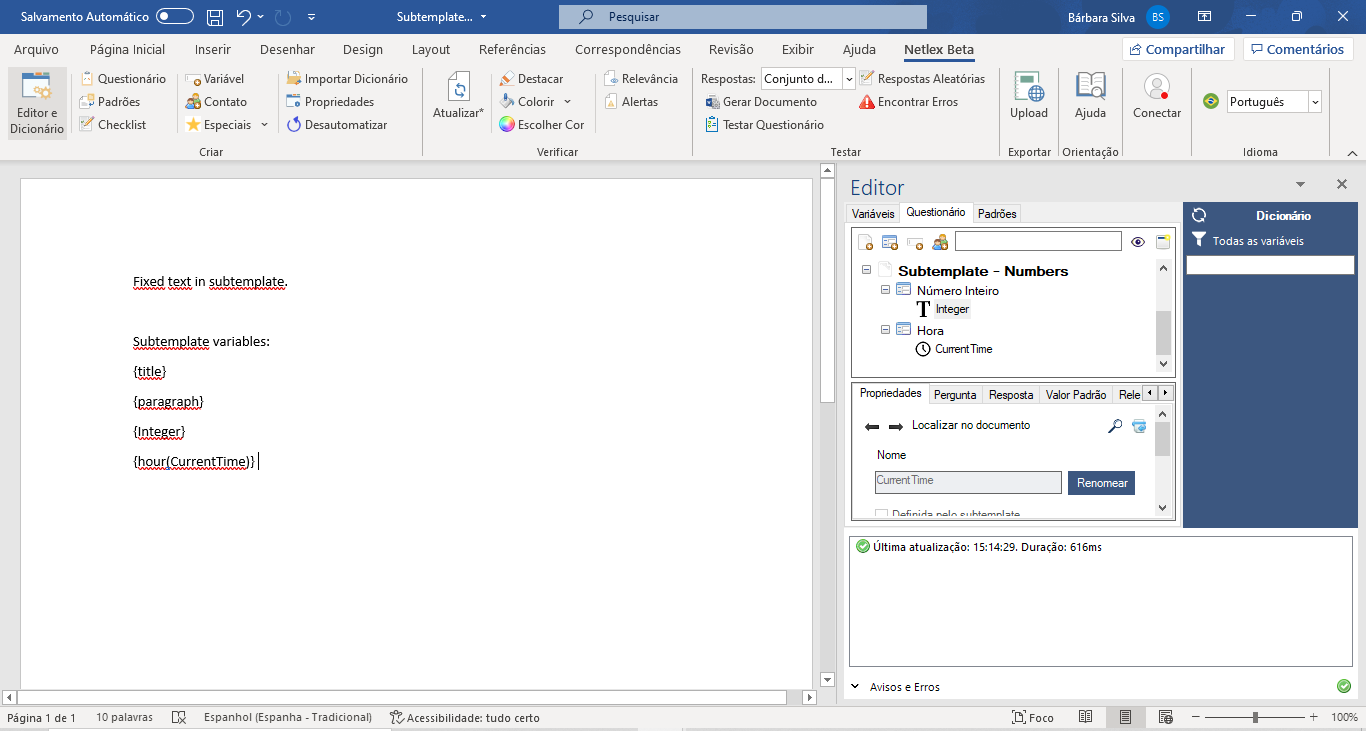
In this automated document you must insert the text or clause or that documents A and B have in common, that is, you will insert the information that should be reflected in both documents. Here is an example:
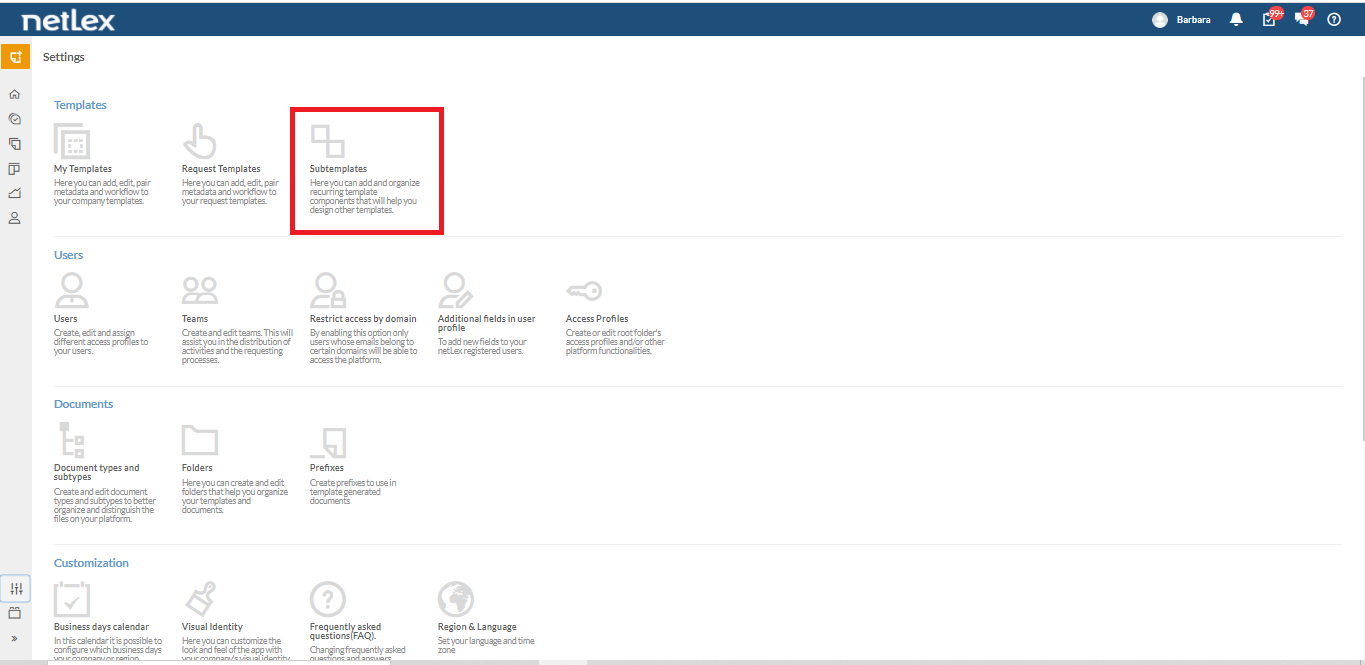
To insert or change a subtemplate go to the "settings" > "subtemplate" menu.
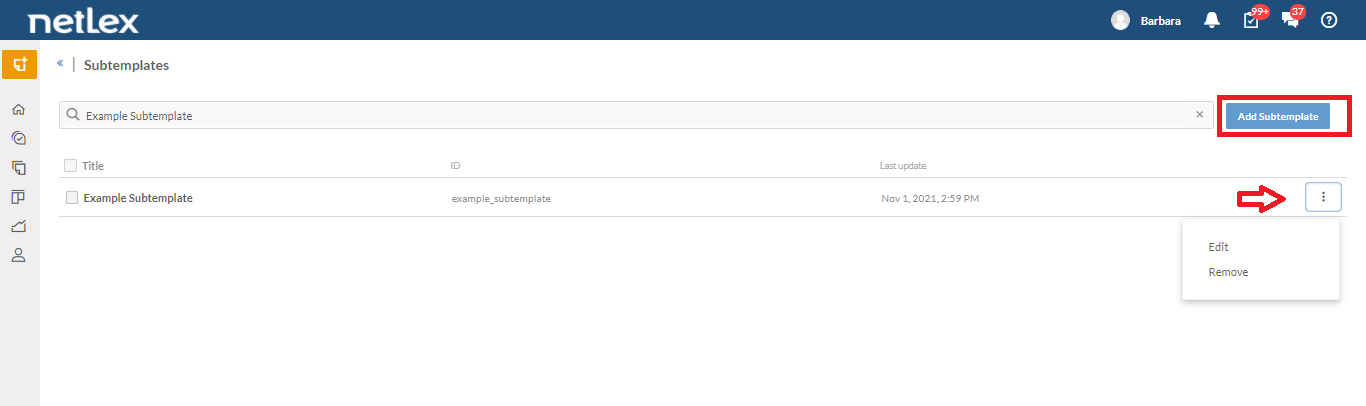
On this screen you can add a subtemplate, edit or delete an existing one.
The Subtemplate main screen is very similar to the templates screen. Here you can "Add a new version", "download" a desired version, "View Dictionary", "Export and import metadata".
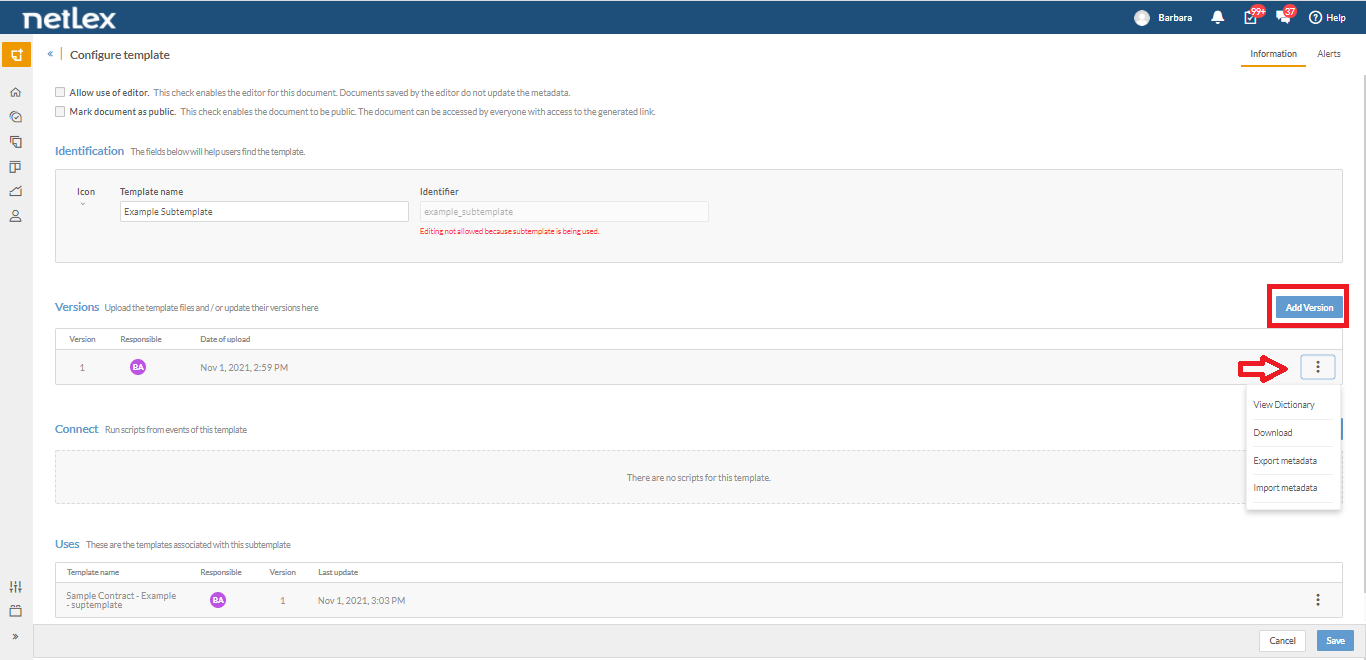
In addition, you can view the list of all templates associated with this subtemplate, that is, all templates that are using this subtemplate in their content.
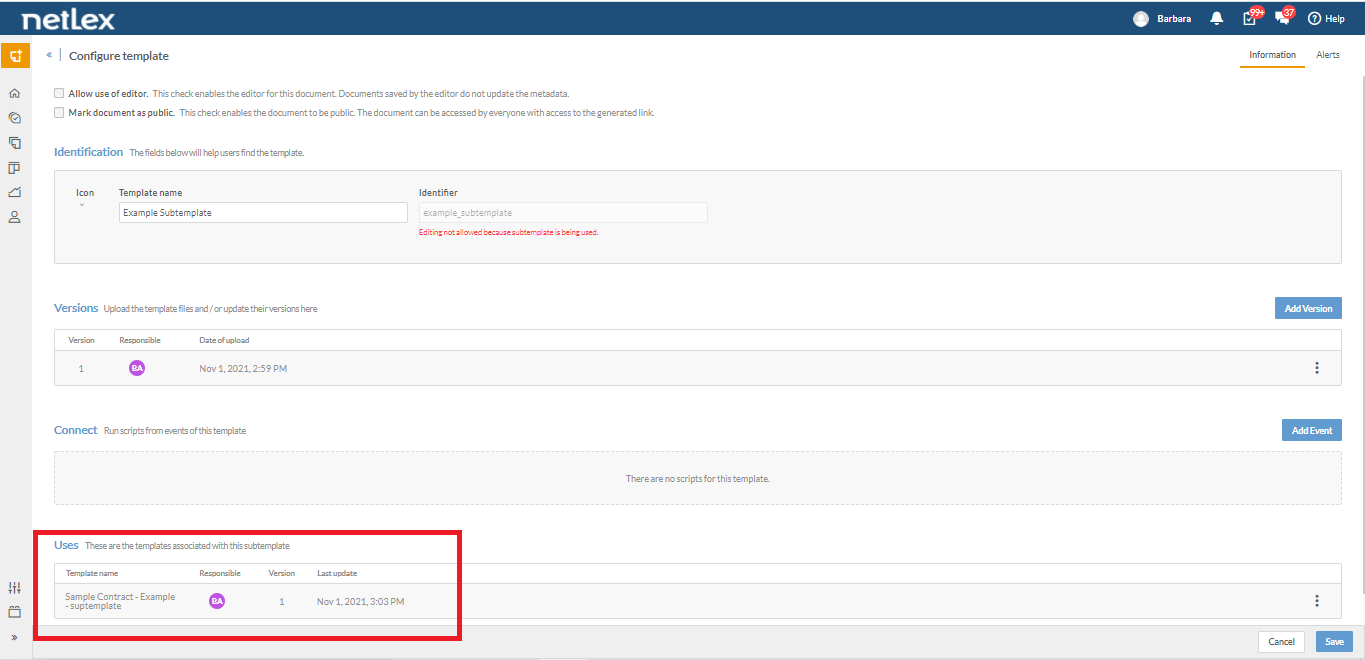
2- Link a subtemplate to the desired templates:
The linking of the subtemplate to the templates is carried out within the template itself. It is necessary to insert through Lex-in the information of the subtemplate in the place where the clause that the documents have in common should be.
Still following our example quoted at the beginning of this text, it would be necessary to include the subtemplate variable in the two contracts A and B that have a clause in common.
Subtemplate information should be included in the desired location in the text and also in the questionnaire. You will use the commands:
{Add Subtemplate + Subtemplate Identifier}
Like for example:
{Include Subtemplate subtemplate_example}
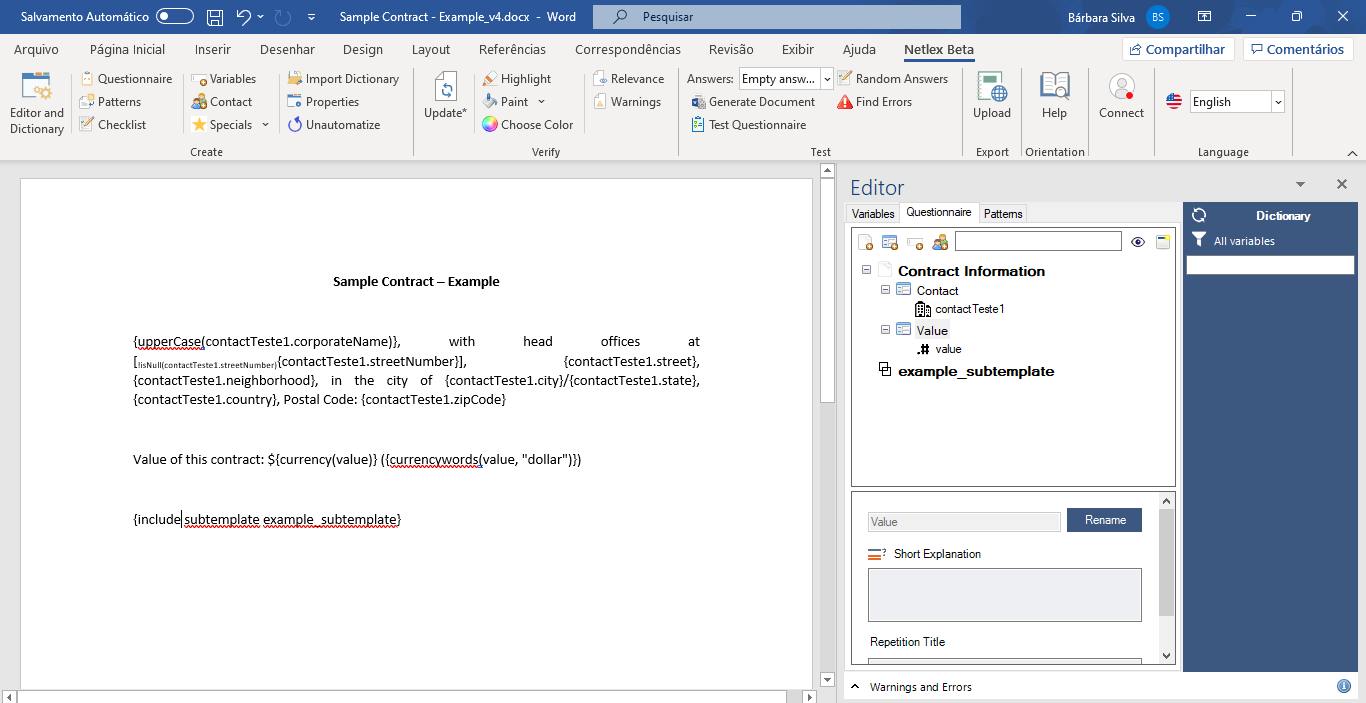
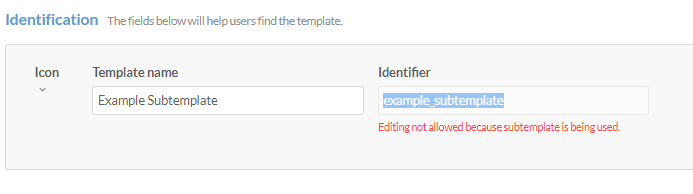
You must enter the name of the "identifier" of the subtemplate that was previously registered:
Remember to update the Lex-in dictionary after adding the subtemplate so that it is actually associated with the template in question.
After performing this process, just upload a new version of the template in "Settings" > "My Templates" and the system will automatically identify the link of the subtemplate to the template.
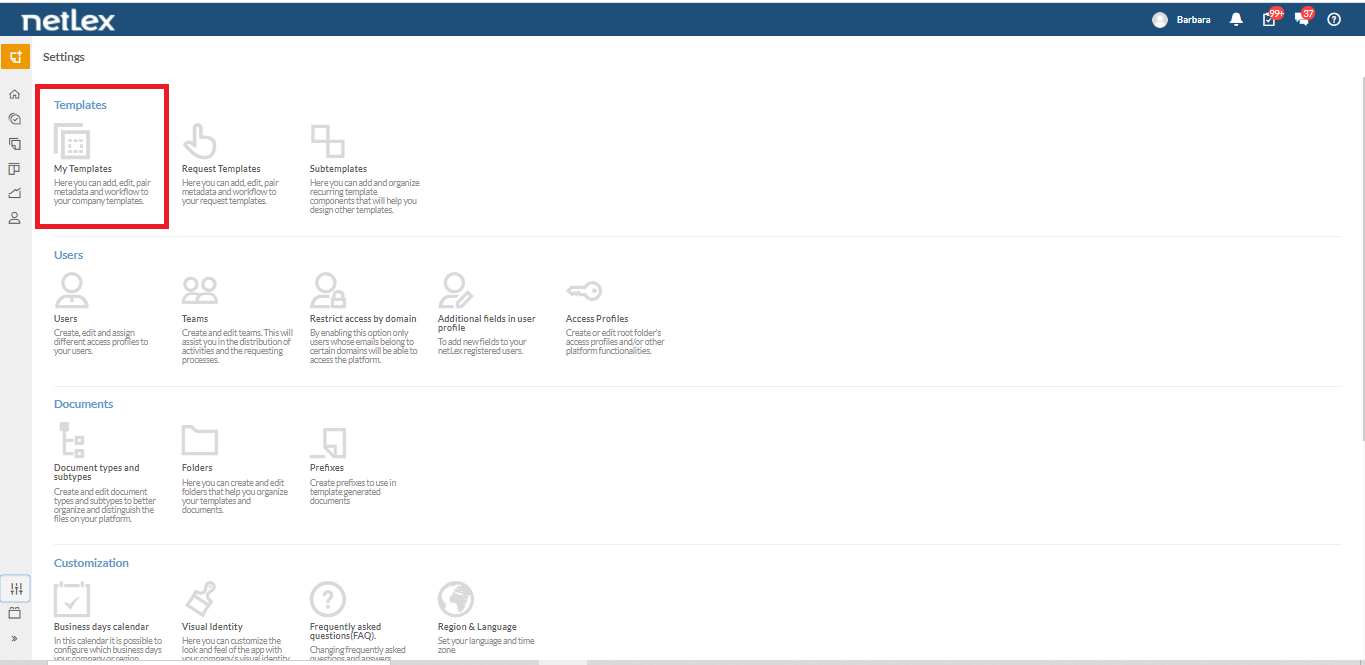
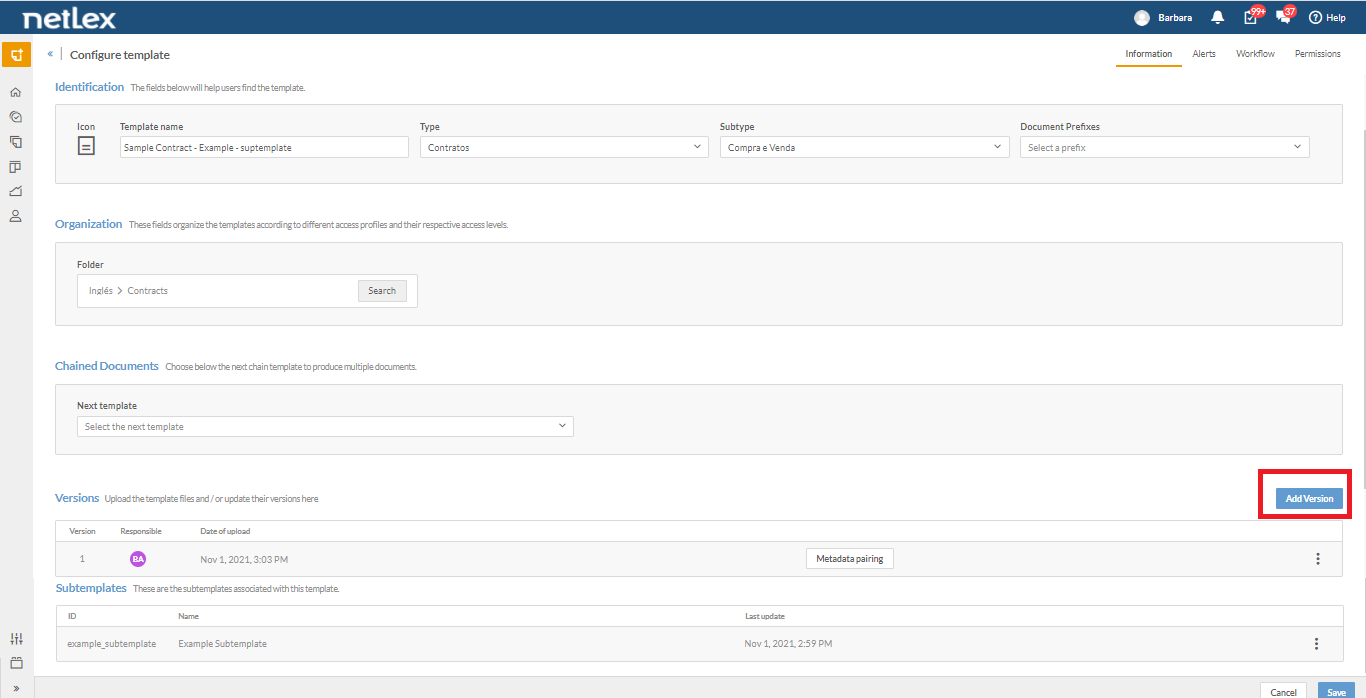
To check if the process carried out worked, you can check if the subtemplate will appear associated with the template as shown in the image below:
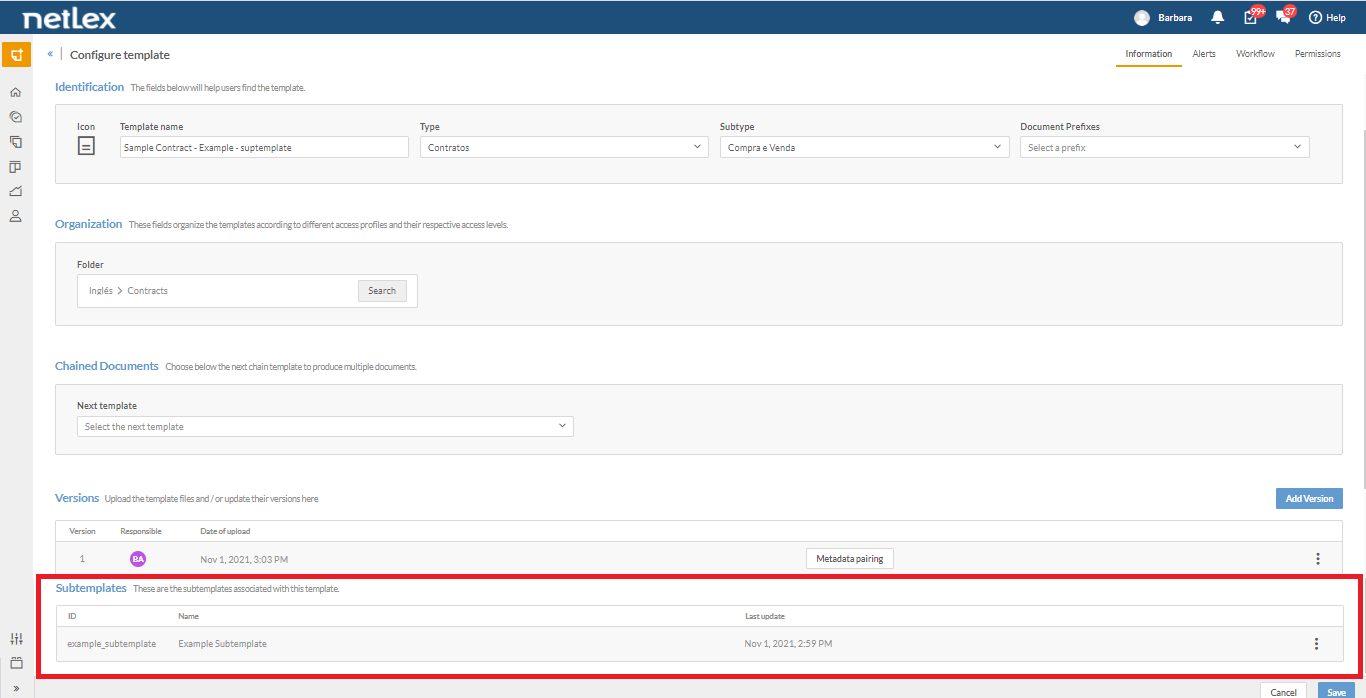
Result:
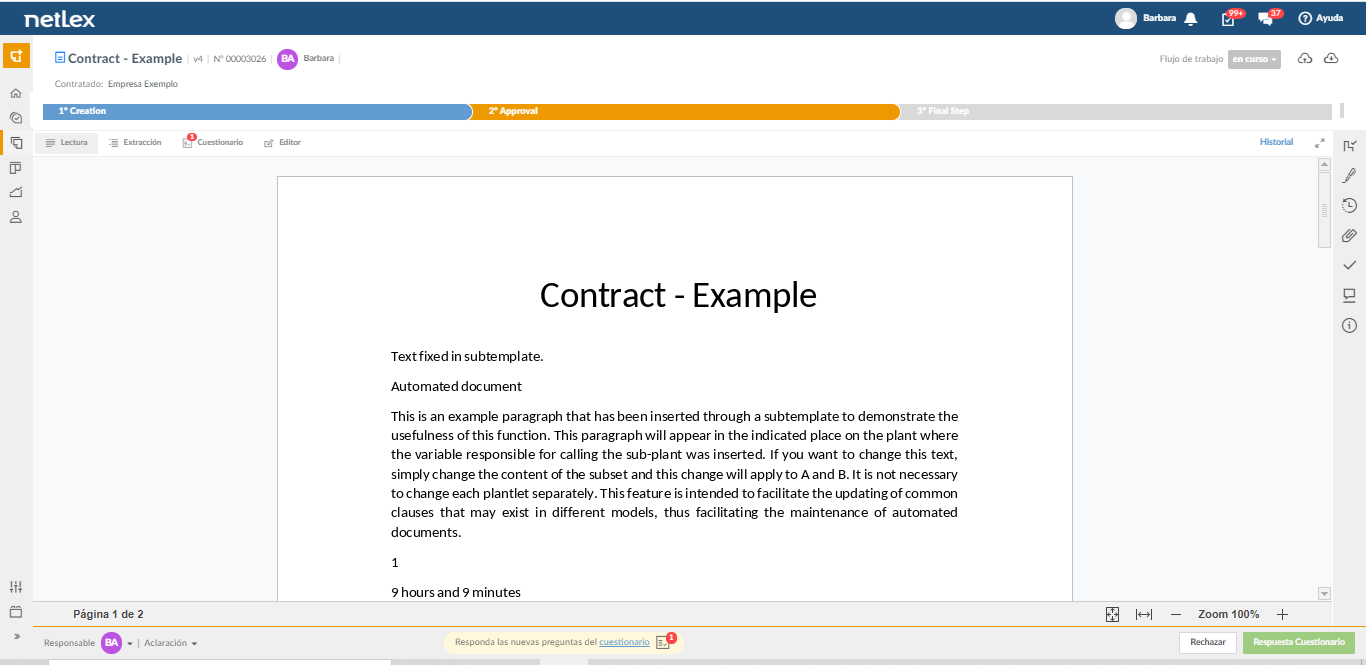
After performing this configuration, when generating a new document via template, the template + subtemplate information will appear in the text as desired. Below is an example:
Comments
0 comments
Please sign in to leave a comment.