
How to delete a document from the platform.
Functionality Presentation

Full explanation
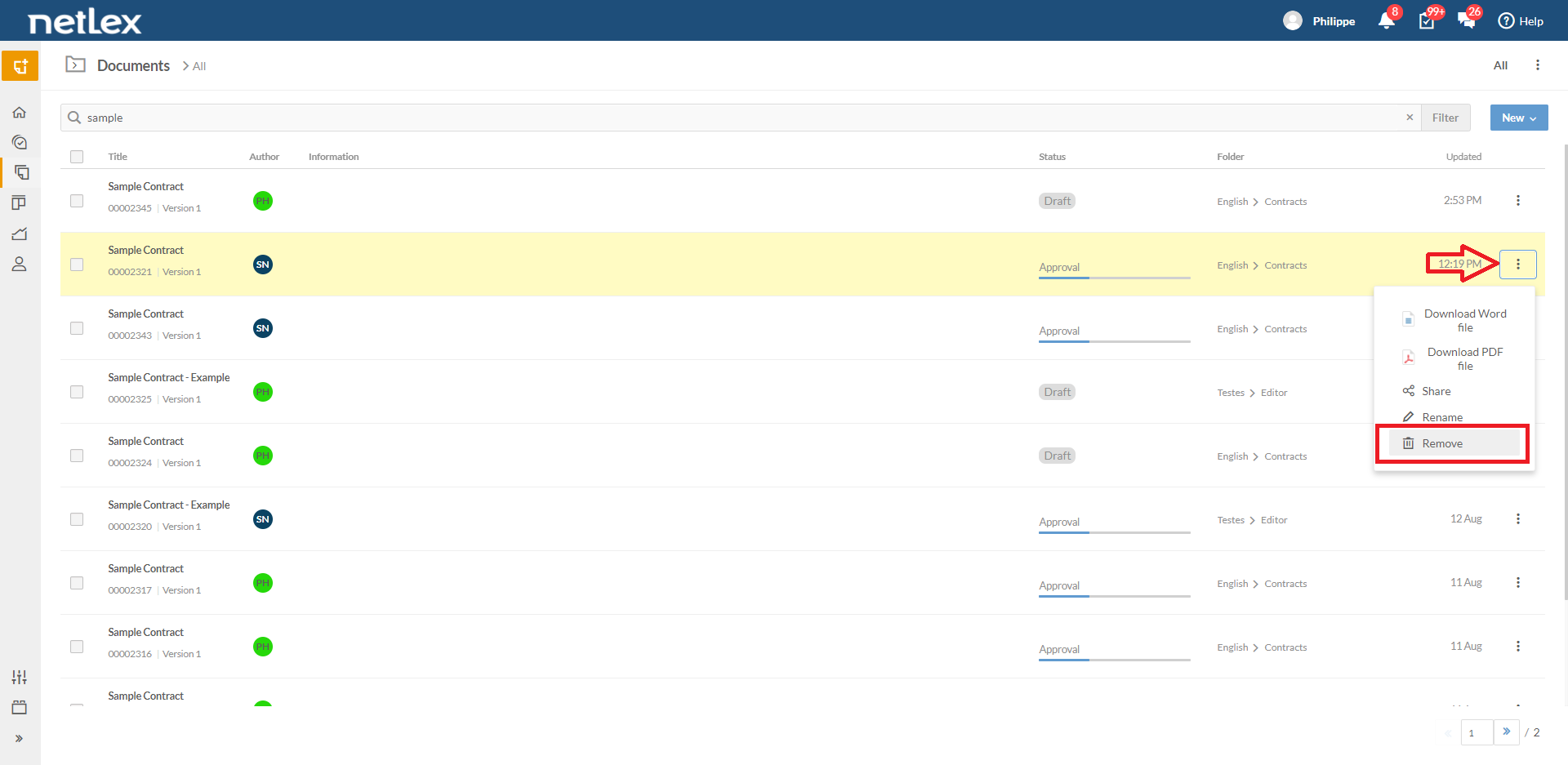
If you need to, you can delete a document on the platform. To do this, go to the "Documents" page and follow one of the following options:
- Click on the icon to the right of the file, symbolized by three vertical dots, and select the “Remove” option.
- To Delete more than one file, select the files you want to delete from the checkbox to the left of the file and click the trash can icon.
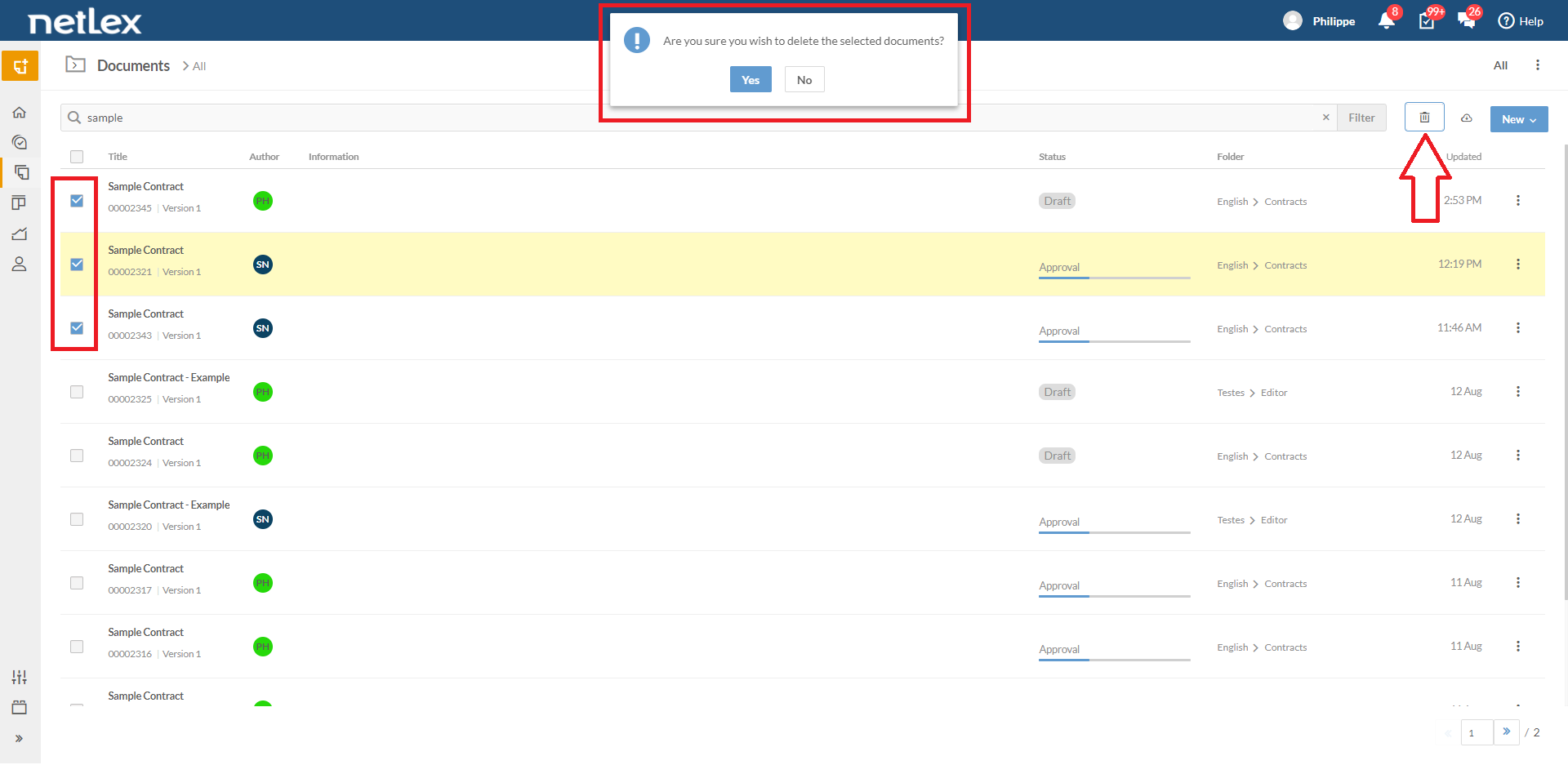
Note that you must have permission to delete documents. If you do not have this permission, you will not be able to delete documents on the platform, unless they are drafts. Drafts can only be deleted by the author himself (who always has this possibility).
The document or request will still be available in the "Recycle Bin" of the document listing and can still be retrieved if necessary. There is an option to "Recover" document as shown in the image below:
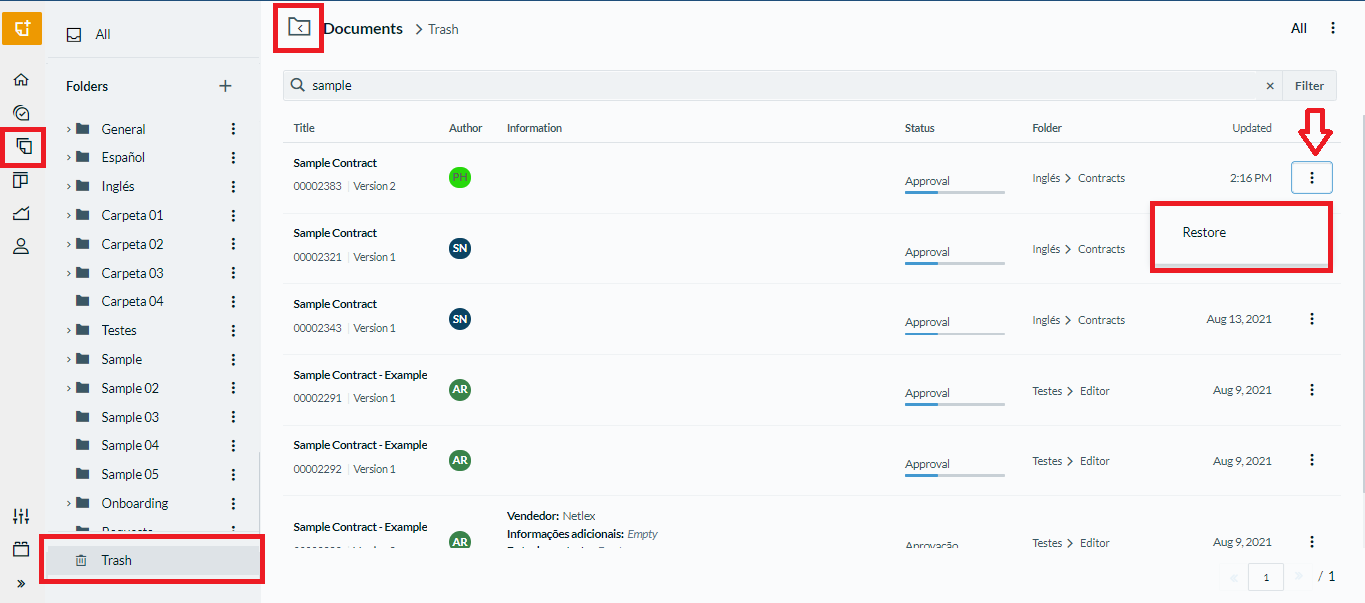
Note: Only users who have access permission to delete them can retrieve a document from the Recycle Bin. So if a user doesn't have the "Delete documents" permission in his profile, he won't be able to restore them.
Once the documents are deleted, they will no longer appear in the company's intelligence reports. For this reason, it is very important to pay attention when carrying out this process.
In addition, when a document is in the “Finished” status, our document lifecycle management features come into play. Soon, the company may still need it a lot! We suggest deleting a document only if it has been generated by an error, such as choosing the wrong Template.
Comments
0 comments
Please sign in to leave a comment.